Manage Assignment Attachments
Attach and delete files associated with the claim-suffix and assignments. You can also view all uploaded attachments, including those submitted through Photo Based Estimating.
You can upload multiple files at one time. Each file can be up to 4 MB in size, with a total upload size of up to 100 MB. All existing file types can be uploaded.
How to
 View Attached Files
- Navigate to the desired claim and open it.
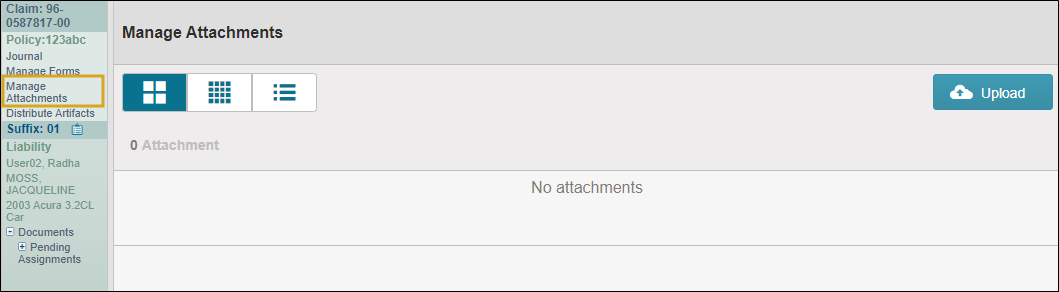
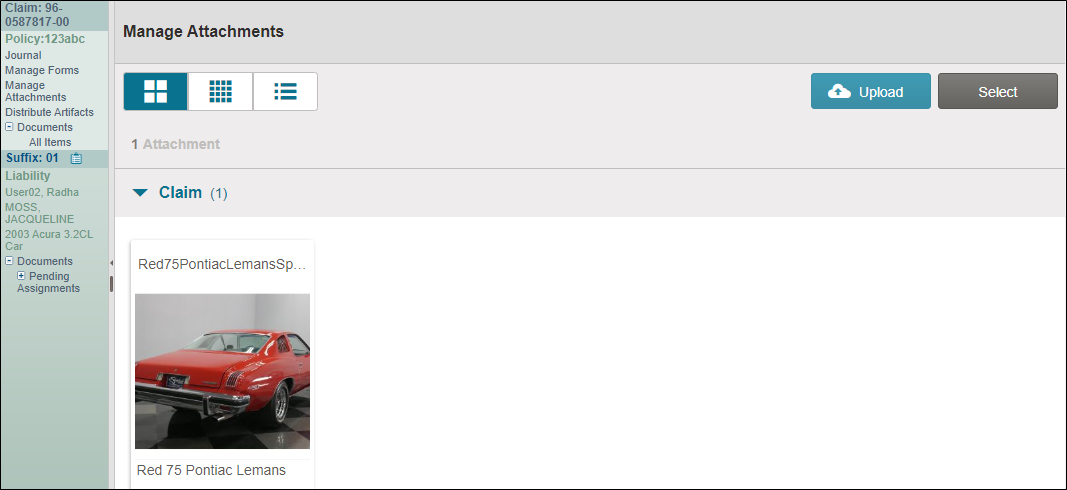
- In the claim navigation pane, select Manage Attachments.
-
If applicable, select the appropriate tab:
-
Select the specific Suffix tab to view files attached to a particular suffix.
-
Select the Claim tab to view files attached to the entire claim.
-
- Use the view controls to adjust how attachments are displayed.

Attach Files
- Navigate to the desired claim and open it.
- In the claim navigation pane, select Manage Attachments.
-
If applicable, choose where to attach your files:
-
Select the specific Suffix tab to attach files to a particular suffix.
-
Select the Claim tab to attach files to the entire claim.
-
- Select Upload.
- Follow the directions from your browser to navigate to and select the desired file(s).
- Select Open.
-
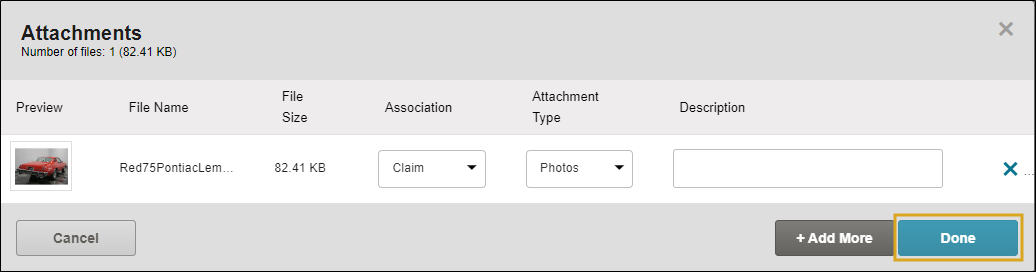
Optionally, select Attachment Group(s) from the list and add a Description to your file(s).
-
Select Add More to add more files, or select Done if you are done adding files.
Note: You can upload/delete up to 200 attachments at once when using the Manage Attachments page.
Delete File Attachments
- Navigate to the desired claim and open it.
- In the claim navigation pane, select Manage Attachments.
-
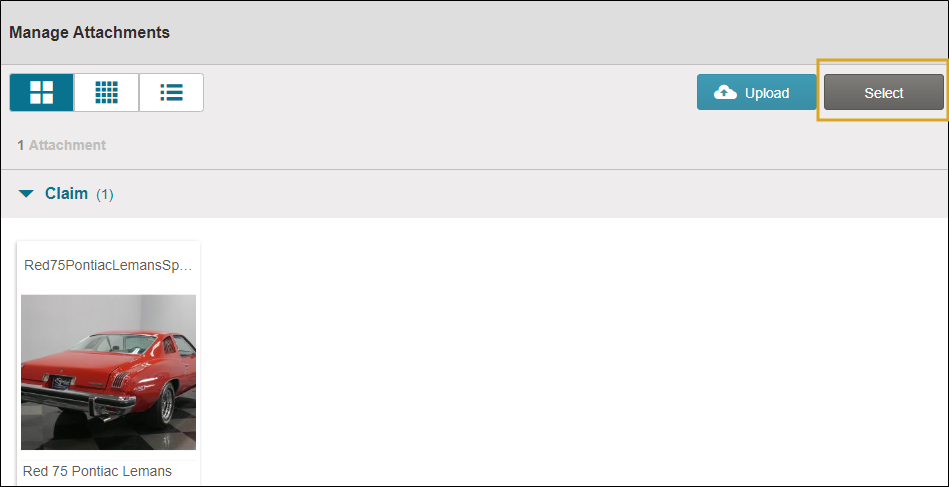
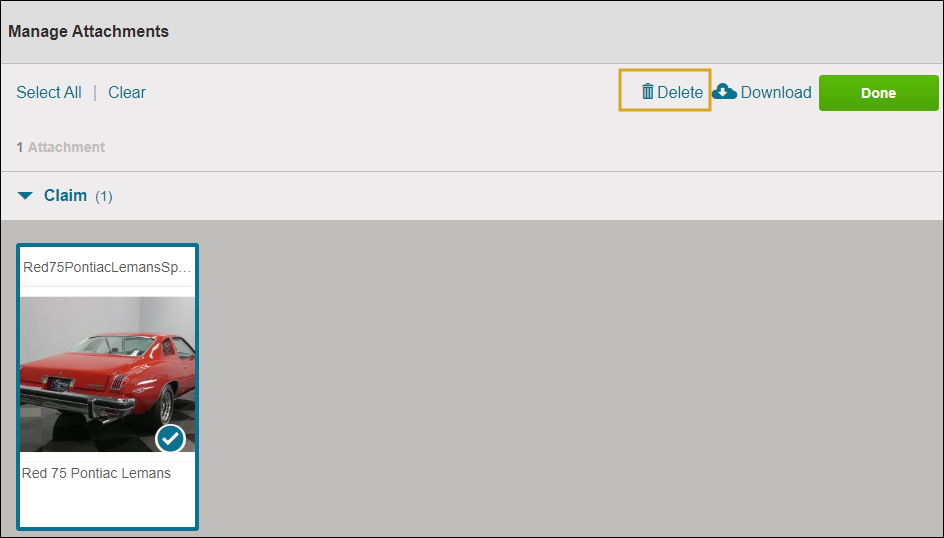
Click Select and then select the attachment(s) you want to remove.
-
Select Delete.
-
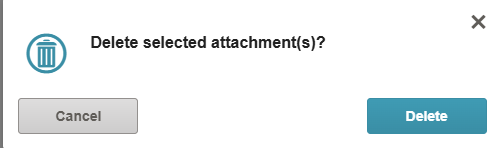
In the confirmation window, select Delete to delete the selected attachment(s).
Download File Attachments
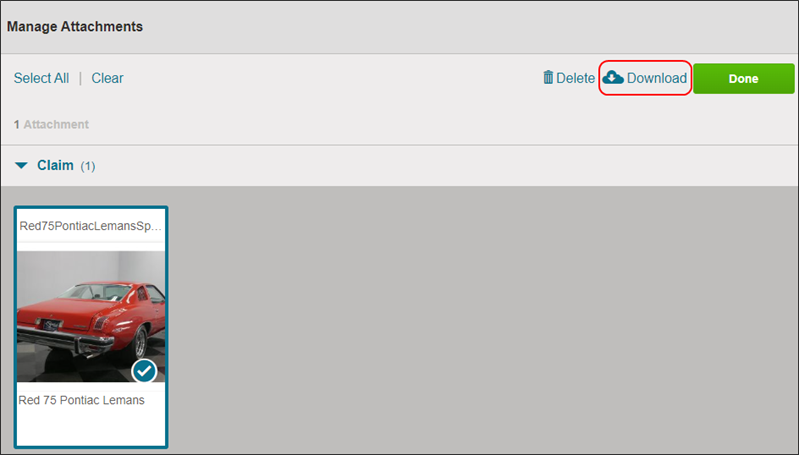
You can download file attachments to your computer.
 Add Photos to a Suffix from the Suffix Details Page
-
Navigate to the desired claim and open it.
-
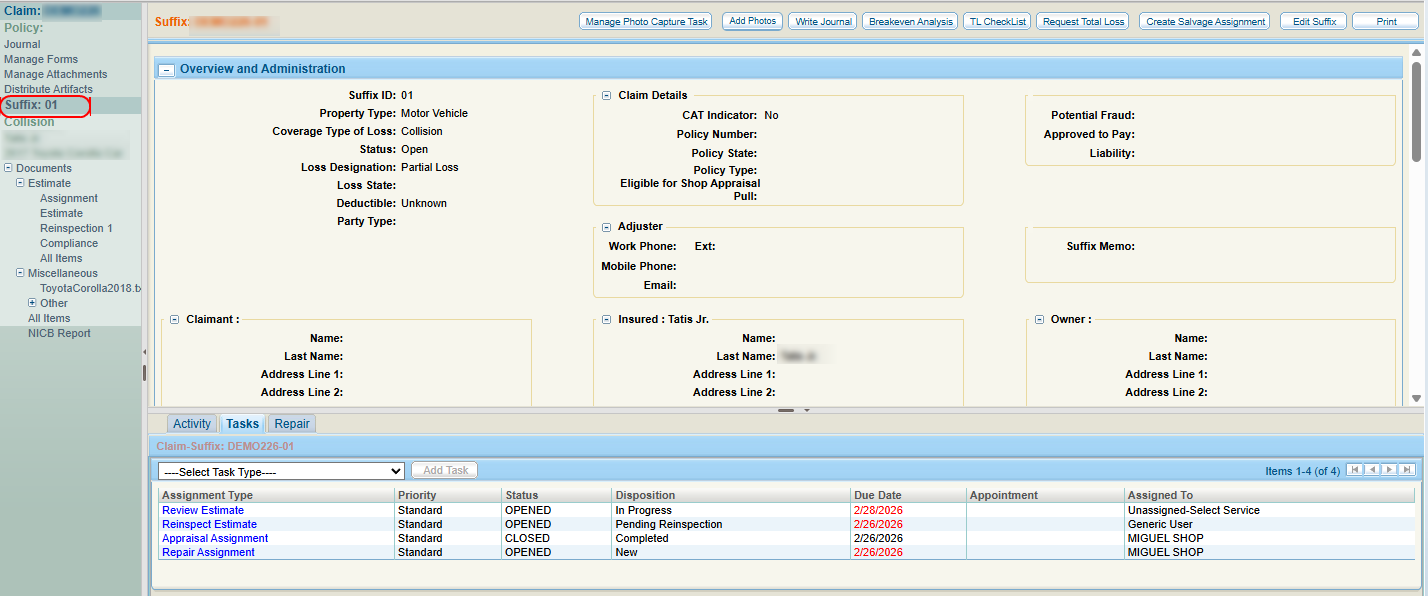
In the claim navigation pane, select the desired Suffix to open the suffix details page.
-
Select Add Photos.
-
Follow the directions from your browser to navigate to and select the desired file(s).
- Select Open.
-
Optionally, select Attachment Group(s) from the list and add a Description to your file(s).
-
Select Add More to add more files, or select Done if you are done adding files.
Reference
View Components
| Icon | Description |
|---|---|

|
Display the image/attachment preview, the attachment name, and the attachment description in a grid format. |

|
Display the only the image/attachment preview in a grid format. |

|
View a list of the files attached to the claim. |
Related topics
