Sign In
Use your current credentials (Organization ID, user name, and password) to sign in to Mitchell WorkCenter.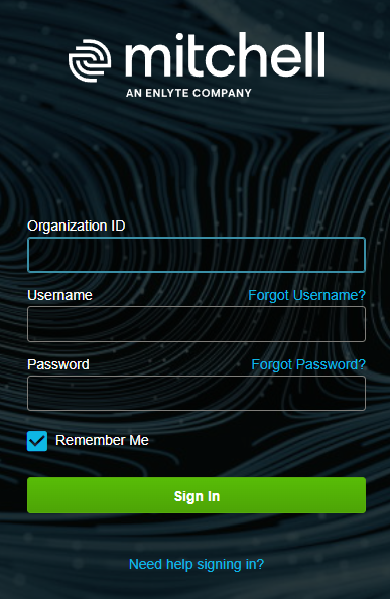
How to
 Sign in
- On the WorkCenter page, in the Organization ID field, type your organization ID.
- In the Username field, type your user name.
- If you forgot your username, select Forgot username? and follow the instructions to reset it.
Tip: Select the Remember Me check box to save your username for the next session. For security reasons, this does not save your password.
- In the Password field, type your password.
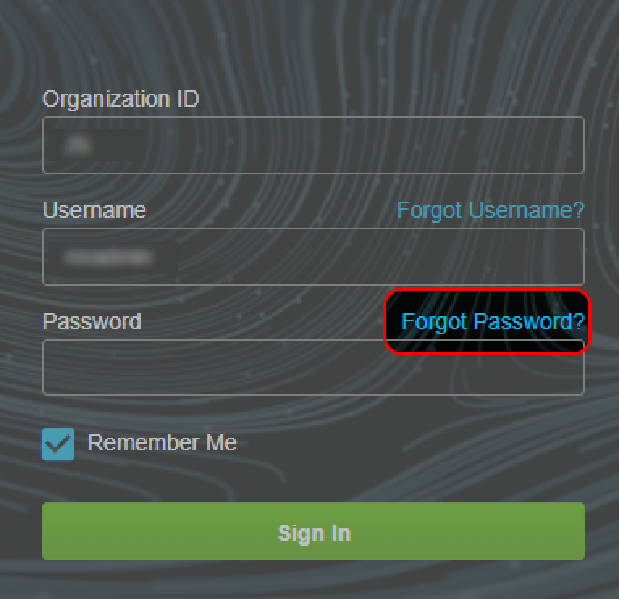
- If you forget your password, select Forgot password? and follow the on-screen instructions to reset it.
- Select Sign In.
Note: WorkCenter access will now be blocked after multiple failed login attempts. If you are locked out of Mitchell WorkCenter, contact your organization's Administrator. The Administrator can reactivate your account from the Settings page in Mitchell WorkCenter.
Reset
your Mitchell WorkCenter password - On the Mitchell WorkCenter Sign in page, select Forgot password?
- In the Reset Password page, type your organization ID and username and select Send Instructions.
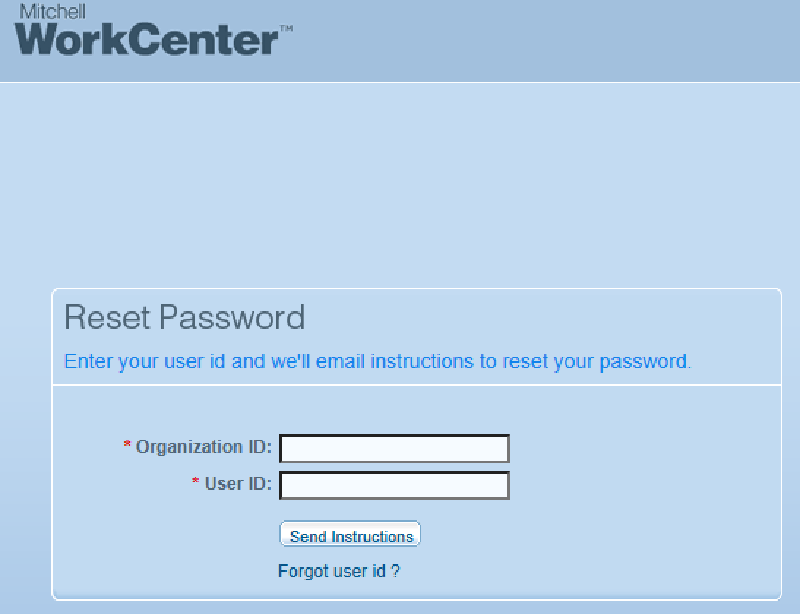
You will receive an email to the address associated with your username with instructions for resetting the password.
Tip: Your password must be 8 characters or less.
Reference
Window Components: Sign In Page| Name | Description |
|---|---|
| Organization ID | The two-character company code assigned by Mitchell. |
| Username | Your personal identification. |
| Forgot username? | We'll email your user name to you. |
| Password | Your personal password. |
| Forgot password? | We'll email instructions to reset your password. |
| Hide | Hides the password as you type. |
| Need help signing in? | Opens the online instructions for resetting your username or password. |
| Sign In | Authenticates your credentials and opens WorkCenter. |
Related topics