View Assignment Details
Use the assignment details page to view a summary of an assignment's details, such as:
-
Included Artifacts
-
Notification Details
-
Assignment Location
-
Notes
How To
 View Assignment Details
-
To find the desired assignment, do one of the following:
-
Use the Global Search to locate the desired assignment.
-
Use Work Queue > Assignments to locate the desired assignment. See Use the Assignments Work Queue for more information.
-
Use the Integrated Work View to locate the desired assignment. See Open an Assignment from the Integrated Work View for more information.
-
-
Select the Claim-Suffix number for the desired assignment.
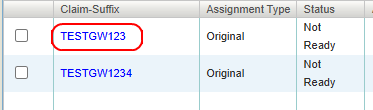
-
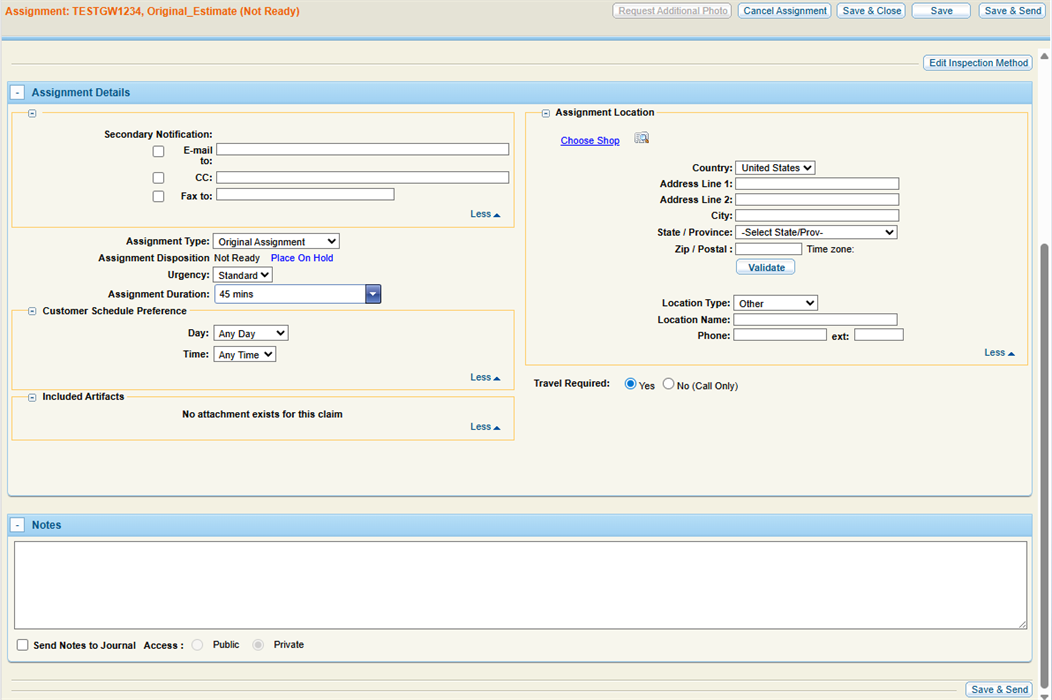
View the assignment details page.
Reference
Assignment Details
| Name | Description |
|---|---|
| Appraisal Resource |
The resource selected in the Inspection Method section. |
| Secondary Notification | Select the check box next to the desired method of notifying the appraisal resource. |
| Assignment Type | Select the type of assignment from the list. |
| Place on Hold | If you use the Dispatch Scheduling Board, you can place the assignment on hold. Placing an assignment on hold prevents it from being scheduled by the Scheduling Engine, and it cannot be dispatched. |
| Urgency | Select Standard, Elevated, or High from the list. |
| Assignment Duration | Select the estimated assignment duration from the list. |
| Customer Schedule Preference: Day | Select Any Day or Specific Day from the list. If you select Specific Day, enter the date or select  to select the date from the calendar. to select the date from the calendar. |
| Customer Schedule Preference: Time | Select Any Time, Morning, or Afternoon from the list. |
| Included Artifacts | If photos (or other attachments) are part of the claim, select those files here to send them. |
| Notes | Enter any additional information to help the appraiser complete the assignment. |
Assignment Location
| Name | Description |
|---|---|
| Choose Shop | Select Choose Shop or select  to open the Resource Lookup window and select a shop. The address of the selected shop completes the address fields in this section. to open the Resource Lookup window and select a shop. The address of the selected shop completes the address fields in this section. |
| Address information | Complete the address information before you can send the assignment. |
| Validate |
Select to validate the address (A complete address is required). When the address is validated, maps and directions to the resource and/or location are available. |
| Location Type | This field displays where the inspection will occur. It automatically populates based on what was selected in the Inspection Method field. |
| Location Name | Enter the name of the location. |
| Travel Required | Select Yes or No . |
