Manage Resources in Resource Lookup
The Resource Lookup maintains a database of service providers that can be assigned to claims, including:
-
Shops
-
Staff appraisers
-
Independent appraisers
-
Adjusters
When you assign work during the claims process, the Resource Lookup window shows the available resources that you can select. You can view and modify the resources that appear in the window to ensure a streamlined workflow.
How to
 Search for Resources
-
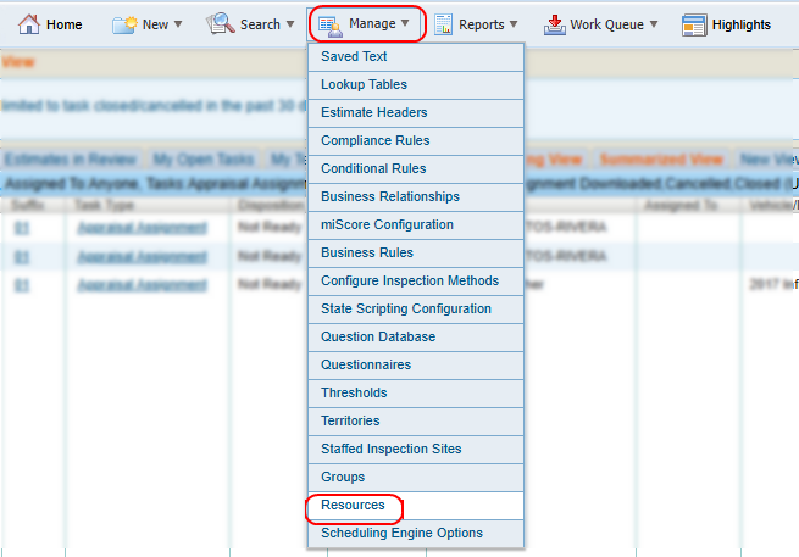
On the Manage menu in the navigation bar, select Resources.
-
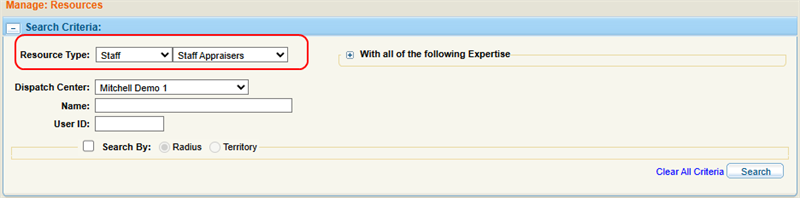
Select a Resource Type.
-
Optionally, enter any other desired search criteria.
-
Select Search.
-
View the Search Results on the page.
Note: Resource Type is the only search criteria that is required, but you can add more search criteria to narrow results.
Forward Resource Details
You can share resource details via email:
-
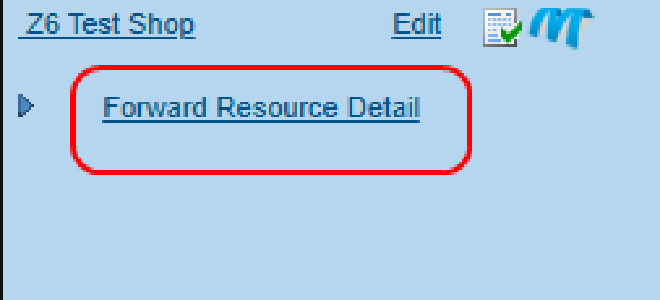
On the Search Results list, select Forward Resource Detail.
-
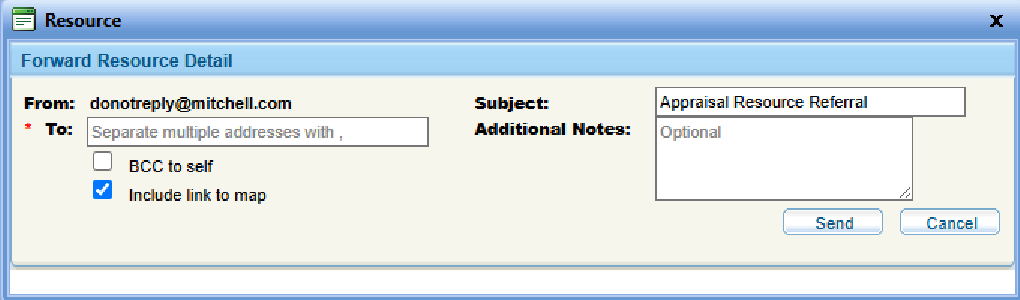
Enter the email address(es) to which you want to send the resource information.
-
Optionally select:
-
The BCC to self check box to include a blind carbon-copy email of the resource information to yourself.
-
the Include link to map check box to include a link to the map view of the resource's location.
-
-
Enter a Subject for the email, as well as any Additional Notes.
-
Select Send.
View a Resource's Location on the Map
-
On the Search Results list, select Map.

-
Google Maps opens in a new tab in your browser and shows you location details.
View the Resource Information Window
-
Select the desired resource's name from the Search Results list.
-
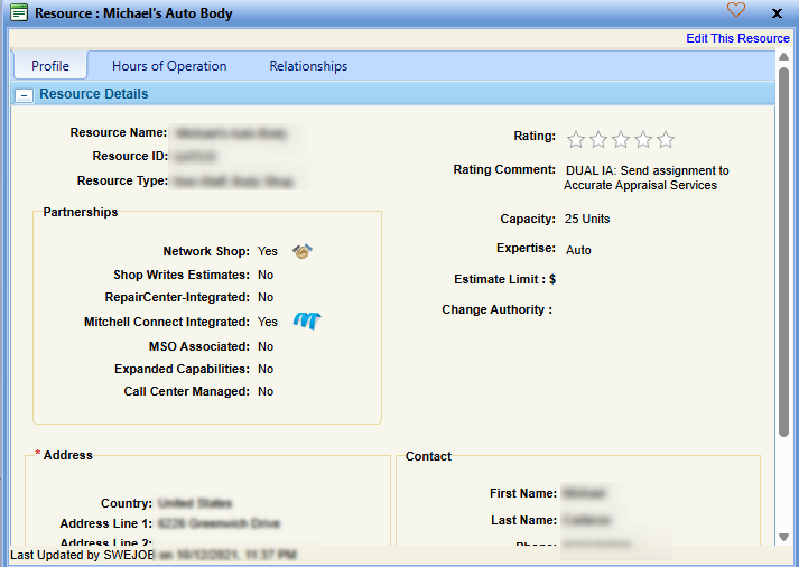
In the resource information window that appears, select the desired tab to view additional information about the resource.
Edit a Resource
-
Do one of the following:
-
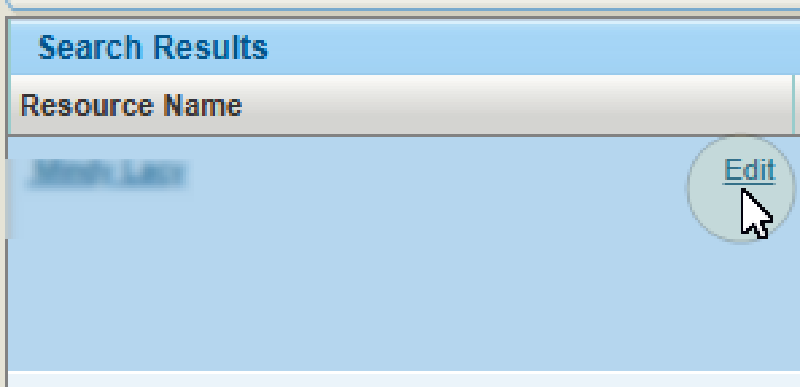
Hover over the desired resource's name in the Search Results list and select Edit.
-
In the resource information window, selectEdit This Resource.

-
-
On the Resource Details page, modify information as desired. See Edit Resources from the Resource Details Page for more information.
-
Select Save & Close.
Favorite a Resource
You can mark resources as favorites for quick access when assigning work.
-
Select the desired resource's name from the Search Results list.
-
In the resource information window that appears, select the heart icon.

Manage Staff Resource Calendar
For staff resources, you can manage calendar appointments.
- On the Resource Details page, select
 to expand the Calendar section.
 - Select the month arrow and use the forward and back arrows to display the month when the appointment occurs.
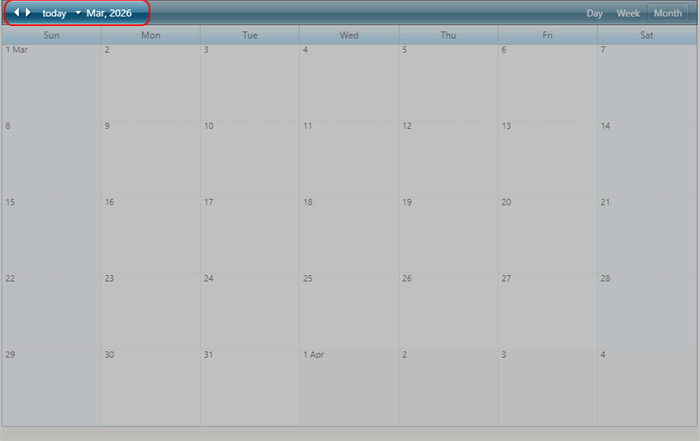
- Double-click the day of the month when the appointment occurs.
- Type a description of the appointment in the window.
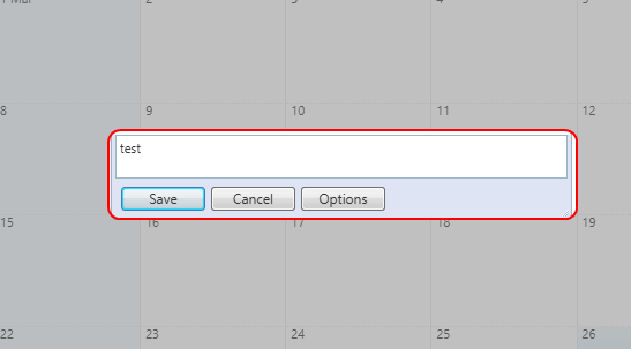
- Do one of the following:
- To set a full-day one-time appointment, select Save.
- Select Options and use the All day and Recurrence check boxes to select the options that accurately define the appointment(s).
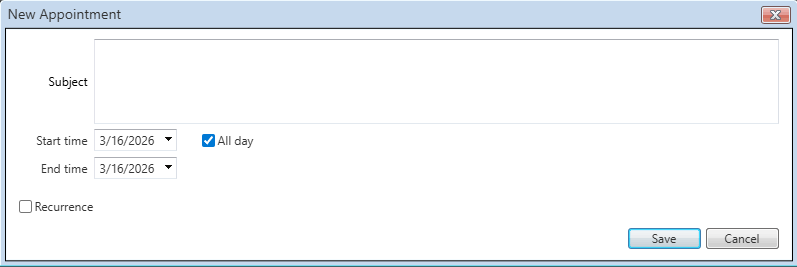
- Select Save to add the appointment(s) to the calendar.
Associate a Resource with Multiple Dispatch Centers
-
On the Manage menu in the navigation bar, select Resources.
-
Select a Resource Type.
-
Optionally, enter any other desired search criteria.
-
Select Search.
-
Select the desired resource's name from the Search Results list.
-
Select Edit this Resource.
-
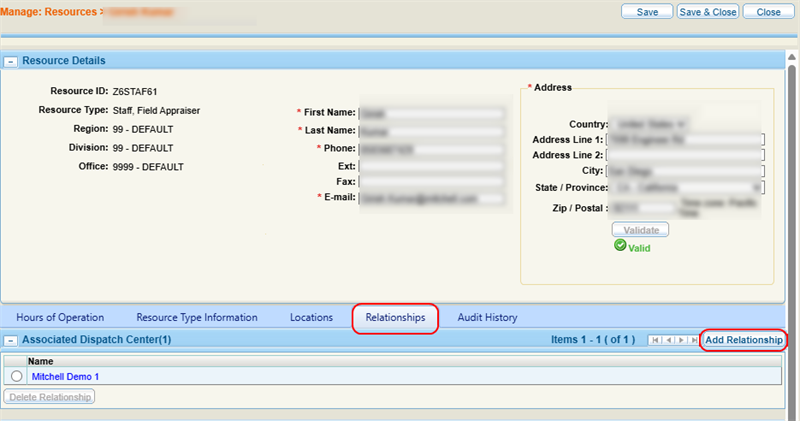
Select the Relationships tab on the Resource Details page.
-
Select Add Relationship in the Associated Dispatch Center section.
-
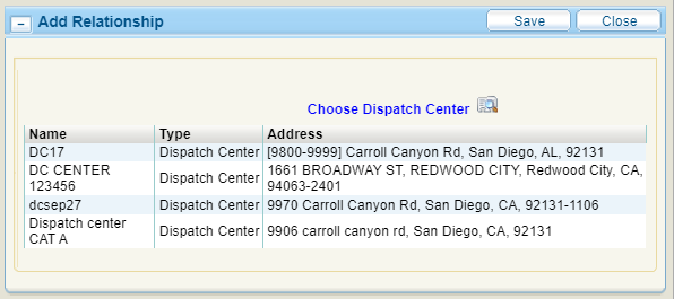
Select Choose Dispatch Center to choose dispatch centers.
-
Select the desired dispatch centers.
-
Select Save.
Reference
Search Criteria Components
| Name | Description |
|---|---|
| Resource Type | Select either a Staff or Non-Staff resource from the first list, then select a category of staff or non-staff resource from the second list. |
| Only Shops in Network | If you have selected a Non-Staff Body Shop, select the check box to limit your search to shops that are in network. |
| Dispatch Center |
If applicable, select a dispatch center to view only appraisers assigned to that location. |
| Name | Enter the name of the resource. |
| User ID |
Enter the username of the resource. |
| With all of the following Expertise | Select the desired check box(es) to narrow the search to resources with specific areas of expertise. |
| Search By | Select the check box to narrow the search to resources within a specific area radius or territory. |
| Distance | Select a search radius distance (in miles) from the ZIP/postal code or address. |
| Country | Select a country. |
| Street Address | Enter the street address. |
| ZIP/Postal Code | Enter a ZIP/Postal Code. |
Search Results Components
| Name | Description |
|---|---|
| Resource Name | The resource's name. |
| Partnerships | Indicates how a resource connects with other systems, like Repair Center or MSO Integration. |
| ID |
The resource's unique identification number. |
| Group Type | The resource's category (staff, non-staff, shop, etc.) |
| Address |
The resource's address. |
| Contact | The resource's telephone and e-mail address. |
| Open Capacity | The number of appointments a shop can accept at a given time. |
| Rating | The rating you've given the resource. |
| Expertise | The resource's areas of expertise. |
| Assignments | The number of assignments currently assigned to the resource. |
| Distance | The resource's distance (in miles) from the ZIP/postal code or address you entered in the search. |
| Workload Factor |
The percentage of time the resource will take to complete the work. For example, if an assignment is 60 minutes and the appraiser will take 60 minutes to complete it, then the Workload Factor is 100%. |
| Capacity | The number of open or active repairs a body shop can have at any given time without accumulating a backlog. |
Partnerships Icons
| Name | Description |
|---|---|

|
Call Center Managed |

|
Mitchell RepairCenter Integrated |

|
Network Shop |

|
Mitchell Connect Integrated |

|
Shop Writes Estimates |

|
MSO (Multi-Site Operator) Associated |

|
MSO Integrated |
Related topics
