Search for Claims
Use the global search to search for specific claims.
How to
 Use the Quick Search
The quick search in the navigation bar searches across claims, assignments, estimates, and total loss valuations using six or more characters from the claim number, VIN, license plate, contact number, or policy number.
You can enter a partial number as long as it contains at least six characters.

- Select a search category: Claim Number, VIN, License Plate, Contact Number, or Policy Number.
- Enter a number that has at least six characters.
- Click Search.
- You can view the search results on the page, and you can filter the results with an advanced search if necessary.
Use the Advanced Search
The advanced search option searches across claims, assignments, estimates, and total loss valuations using one or more characters from the claim number, VIN, license plate, contact number, policy number, party name, or staff/shop name. You can also filter and sort the results of this search.
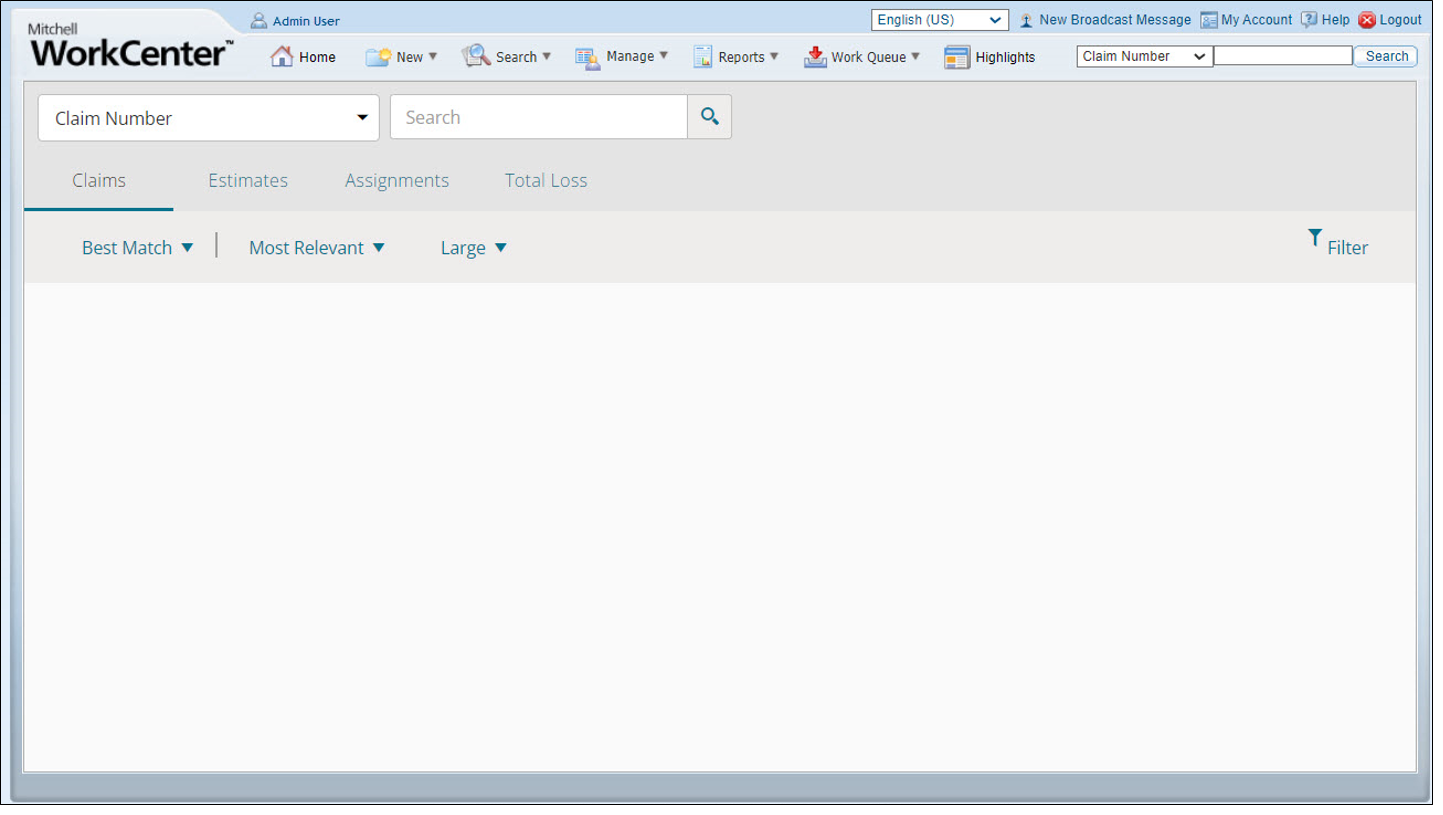
-
On the Search menu in the navigation bar, select Global Search.

-
Choose a search category: Claim Number, VIN, License Plate, Policy Number, Party Name, Staff/Shop Name, or Contact Name.
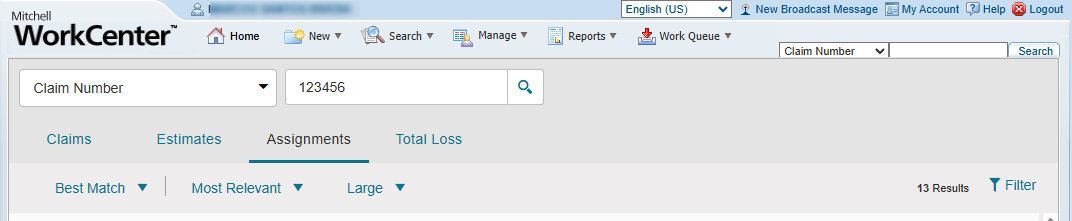
-
Enter one or more characters in the Search field.
-
Select
 .
. -
You can view the search results on the page. Select the appropriate tab to view the results in the Claims, Estimates, Assignments, or Total Loss lists.
-
Select Filter to filter the search results. Filter options vary based on whether you are viewing Claims, Estimates, Assignments, or Total Loss lists.
-
You can also change the way results are shown:

-
Sort results by Best Match, Claim Number, or Due Date.
-
Sort by most relevant result first.
-
Choose Small, Medium, or Large to change how much information you see about each result in the list.
-
Reference
Filter Components
| Name | Description |
|---|---|
| Date Type | Select either Claim Created date or Loss Date. |
| Date Range | Select a date range from the list, or select  to manually choose a range. to manually choose a range. |
Related topics
