Use the Claims List Work Queue
The Work Queue allows you to view your desired work items in the workspace. In Work Queue > Claims, you can view and customize different Claim Lists. This is one method to find and view claims.
Note: Green text in the Work Queue list indicates that the estimate has been sent from Mitchell Cloud Estimating with an attachment.
How to
 View the Claims List Page
To view the claims Work Queue:
-
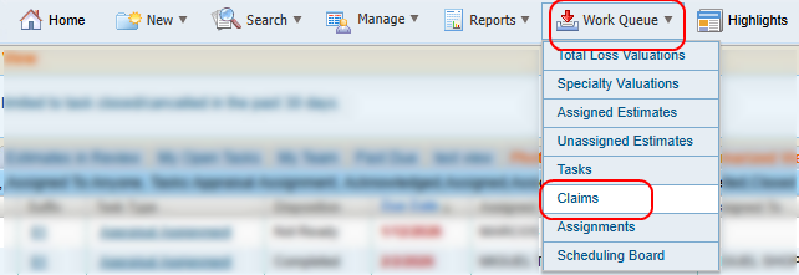
On the Work Queue menu in the navigation bar, select Claims to open the claims list page.
-
Select the appropriate tab to view the desired claim list.
Filter a Claims List
Your filter selections persist between sessions.
-
On the Work Queue menu in the navigation bar, select Claims to open the claims list page.
- Select the appropriate tab to view the desired claim list.
- Select
 Filters to expand the filter view.
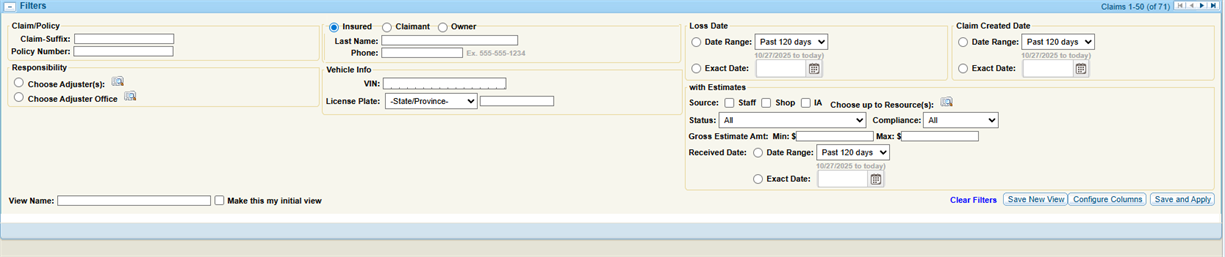
- Modify filters as desired.
-
Select Save & Apply.
Configure Columns in the Claims List
You can customize which columns appear in your claims list to show only the information you need.
-
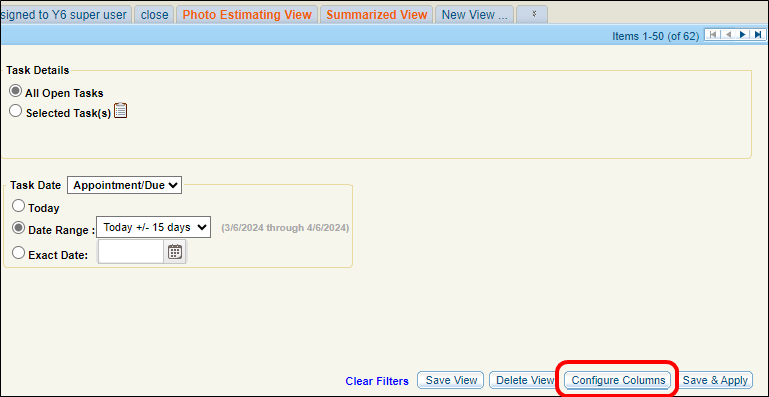
In the Filters section of the appropriate tab, select Configure Columns.
- Do one of the following in the Configure Columns window:
- To add a column, select a column title from the Available Columns list and select Add to add it to the Selected Columns list.
- To remove a column, select a column title from the Selected Columns list and select Remove.
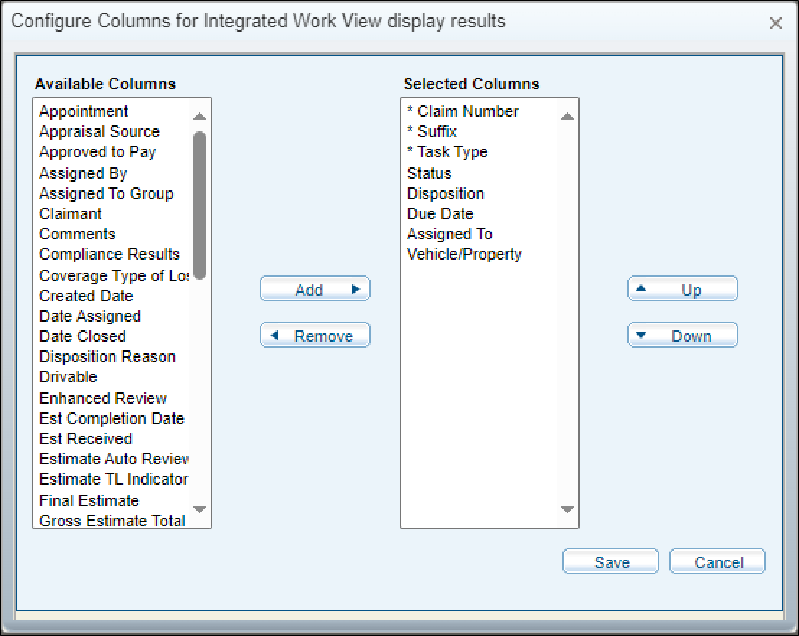
Note: The Selected Columns list shows the current column order.
- Select Up or Down to change the order of the columns shown.
Tip: The top of the list indicates the leftmost column.
-
Select Save.
Create a New Claims List
-
On the Work Queue menu in the navigation bar, select Claims to open the claims list page.
-
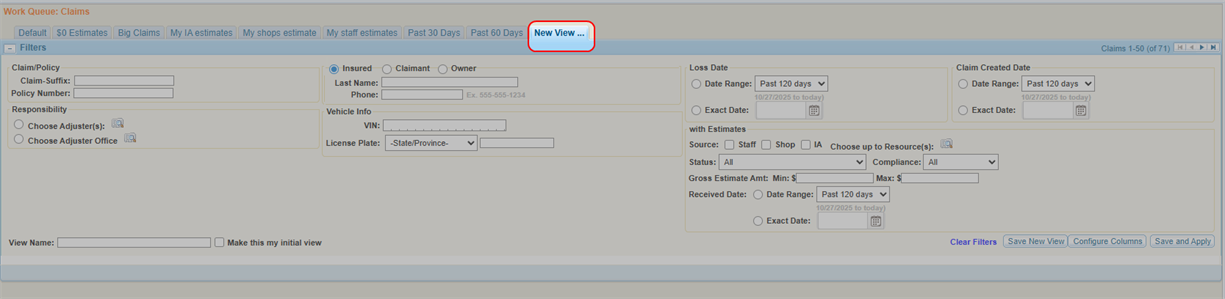
Select the New View tab.
-
Use filters to choose the items you want to be displayed in the claims list.
Note: If you cannot see the filter options, select
to expand the Filter section. -
Select Configure Columns to choose which columns are shown in the list and in what order they appear.
-
Enter a name for the view.
-
Select Save New View.
Reference
Column Descriptions
| Name | Description |
|---|---|
| Claim Number | The Claim number. |
| Suffix ID | The subcategory or segment within the Claim Number. |
| Vehicle/Property |
The year, make, and model of the vehicle. |
| Insured | The insured's name (last name, first name). |
| Claim Created |
The date the claim was first entered. |
| Loss Date | The date the vehicle was damaged. |
Filter Components
| Name | Description |
|---|---|
| Claim/Policy | The Claim number (including any additional identifying number) and/or the policy number. |
| Responsibility | Filter estimates assigned to a specific adjuster or office. Select  to open the Resource Lookup window. to open the Resource Lookup window. |
| Insured/Claimant/Owner |
Select Insured, Claimant, or Owner, and enter the person's last name and phone number. |
| Vehicle Info | The VIN and license plate number of the vehicle in the claim. |
| Claim Created |
The date the claim was first entered. Select a range, or select the |
| Loss Date | The date the vehicle was damaged. Select a range, or select the  to choose an exact date. to choose an exact date. |
| With Estimates |
Filter estimates based on the source, the status, the date received, and/or the estimate gross dollar amount. To filter by source, select the check box to select the source type, and then select |
Related topics
