Edit Photo Attachments
Use the Manage Attachments page to mark up and edit the photos attached to the claim.
How to
 Edit a Photo Attached to a Claim
-
Navigate to the desired claim and open it.
-
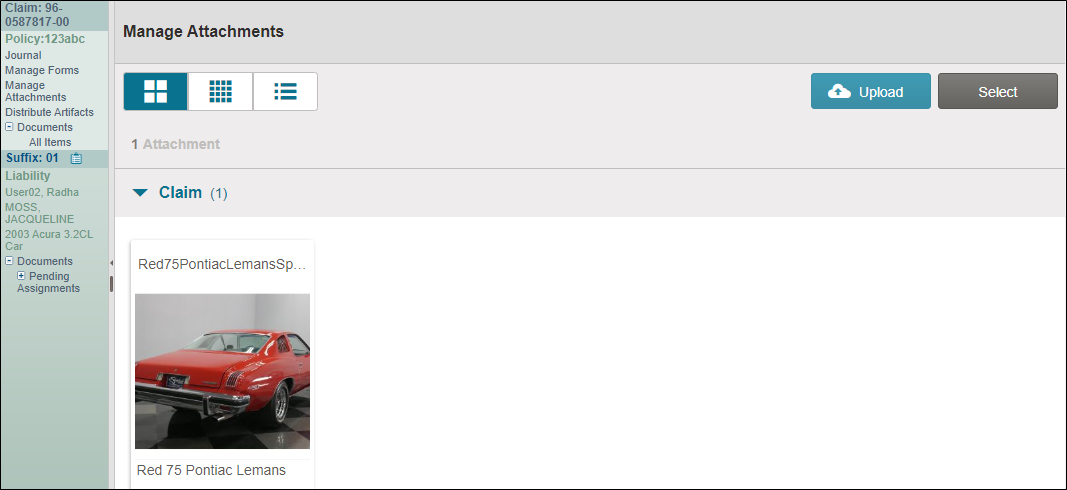
In the claim navigation pane, select Manage Attachments.
-
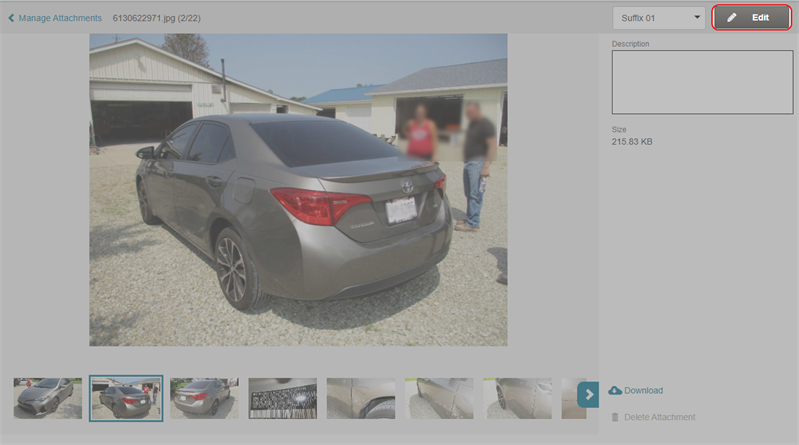
Select the desired photo.
-
Select Edit to open the photo editor page.
-
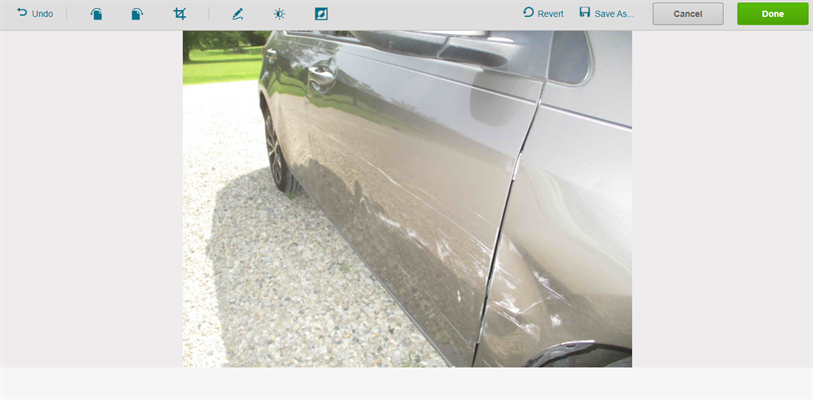
Edit the photo as desired, then select Done when finished.
Crop Images
- On the photo editor page, select the crop button
 at the top of the page. Select
  to position the image as needed.
 - Select the area on the image you want to crop.
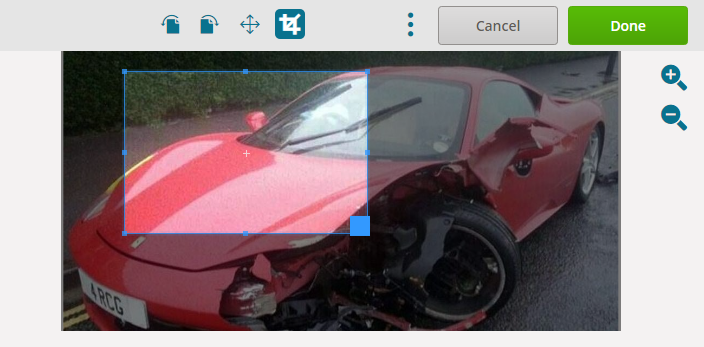
Tip: Select Revert (before you save your changes) to start over.
- Do one of the following:
- Select Done to save your changes. The system creates a new image with your changes.
- Select Save As to save your changes and rename the edited copy of your image. Follow the prompts to save and rename your image.
- Select Revert to undo any changes you made before you save the image.
Rotate Images
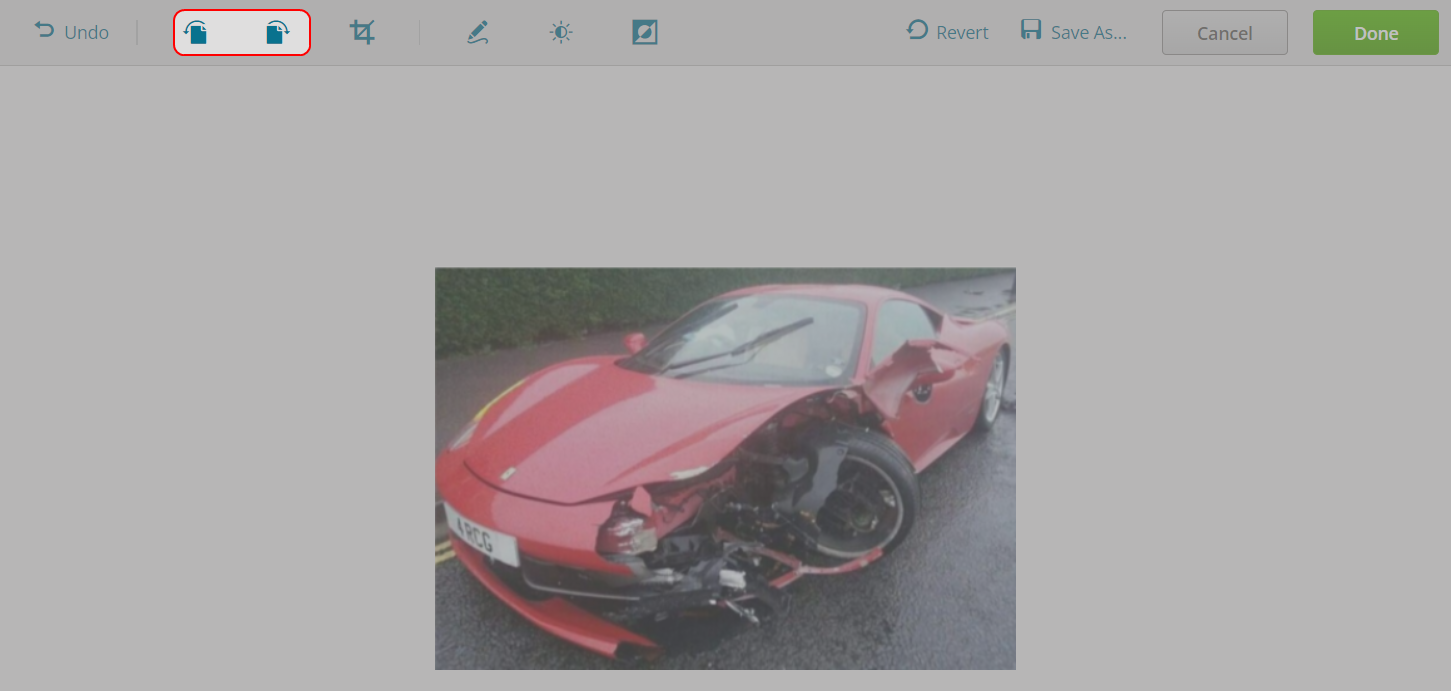
- On the photo editor page, do one of the following:
- Select
 to rotate the image 90 degrees to the left.
 - Select
 to rotate the image 90 degrees to the right.
 Tip: Select Revert (before you save your changes) to start over.
- Select
- Do one of the following:
Select Done to save your changes. The system creates a new image with your changes.
Select Save As to save your changes and rename the edited copy of your image. Follow the prompts to save and rename your image.
Select Revert to undo any changes you made before you save the image.
Zoom in and Zoom Out to View Images
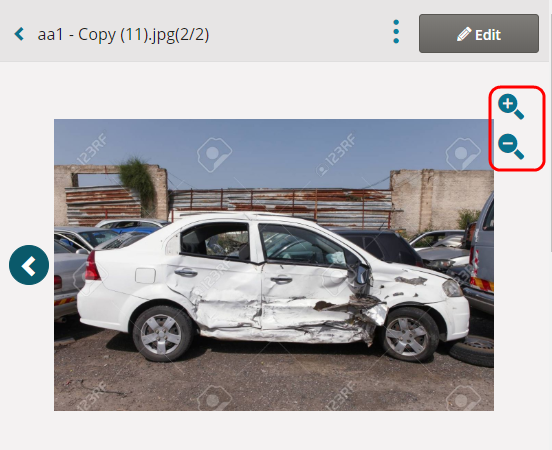
Review images in greater detail by zooming in and out on photos.
- On the photo editor page, do one of the following:
- Select
 to zoom in.
 - Select
 to zoom out.
- Select
Mark and Highlight Photos
Mark up the photos to draw attention to any damages you see.
- On the photo editor page, select
 .
. - Select the color in the Color list and adjust the size of your marker in the Size slider.

- Select the image to start drawing your line.
- Select Revert at any time to undo your changes before you save changes.
Note: Once the image has been saved, you cannot undo your markings.
- Do one of the following:
-
Select Done to save your changes. The system creates a new image with your changes.
-
Select Save As to save your changes and rename the edited copy of your image. Follow the prompts to save and rename your image.
Adjust Image Brightness and Contrast
Make vehicle images easier to view by adjusting the brightness and contrast. Brightness refers to the overall lightness or darkness of the image while contrast is the difference in brightness between objects or regions.
-
On the photo editor page, select
 .
. -
Do any of the following:
-
Adjust the slider to change the brightness.

-
Adjust the slider to change the contrast.

-
Do one of the following:
-
Select Done to save your changes. The system creates a new image with your changes.
-
Select Save As to save your changes and rename the edited copy of your image. Follow the prompts to save and rename your image.
-
Select Revert to undo any changes you made before you save the image.
Invert Image Colors
Invert vehicle image colors to make a high-contrast image that's easier to see. Bright colors turn dark and dark colors turn white.
- On the photo editor page, select
 .
. -
Do one of the following:
-
Select Done to save your changes. The system creates a new image with your changes.
-
Select Save As to save your changes and rename the edited copy of your image. Follow the prompts to save and rename your image.
-
Select Revert to undo any changes you made before you save the image.
Related topics
