Compliance Profiles
Create customized Compliance Profiles that define the specific rules and guidelines applied to your estimates. With these profiles, you can:
-
Select which rules to include
-
Set appropriate thresholds for each rule
-
Determine how profiles are assigned to estimates
This allows you to tailor compliance requirements to match your organization's specific needs and workflows.
How to
 Create and Name a Compliance Profile
-
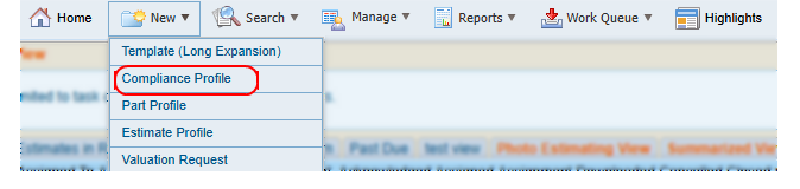
On the New menu in the navigation bar, select Compliance Profile.
-
On the Setting tab, enter a Profile Name and a Profile Description.
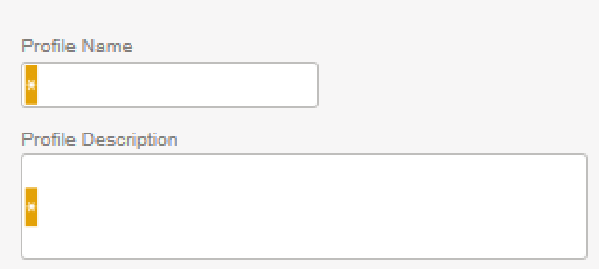
Note: Profiles must have unique names. Duplicates are not allowed.
-
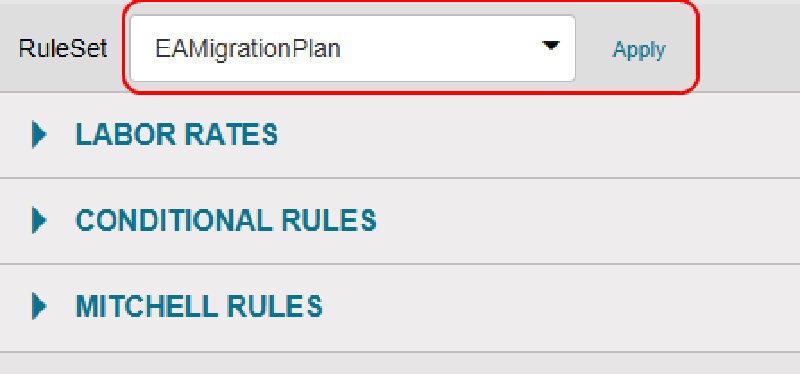
Select a Rule Set from the list.
-
Select Apply to apply the rule set to the profile.
-
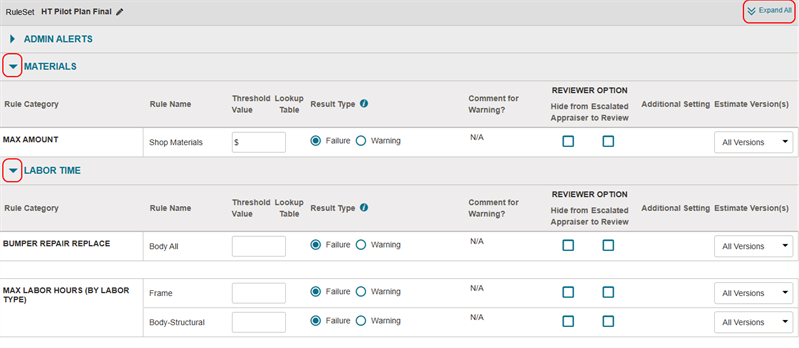
The rules in the rule set display as a list of sections. To view the rules in a section, do one of the following:
-
Select
 beside the section name to expand that section.
 -
Select Expand All to expand all sections.
-
-
In the rule section(s), edit the rule(s) information as desired.
Note: When you select a rule set and apply it to a compliance profile, you can accept the rules as they are or change the thresholds associated with them.
-
Select Save.
Note: If you need to change to another rule set after applying a rule set to a profile, select the
 next to the Rule Set name to edit your choice.
 Assign Users to a Profile
On the Assign User tab, use the following methods to find users and assign them to the profile.
Find Users by Searching
-
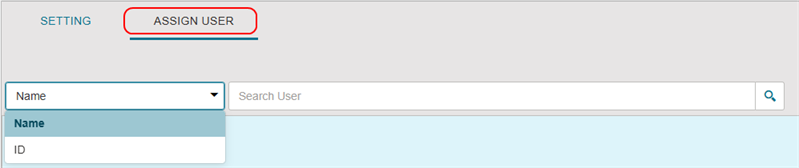
Select the Assign User tab to view the users you can assign to the profile.
-
Select Name or ID from the list and enter the appropriate information.
-
Select
 .
. -
In the User column, select the check box next to the desired user.
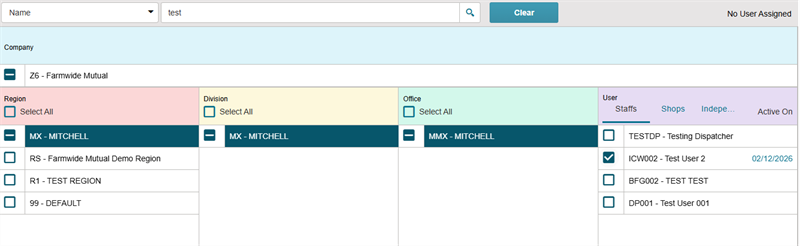
Note: Select Clear to clear search results and search again.
-
Select Save to complete your profile and user selections.
Find Users by Filtering
-
Select the Assign User tab to view the users you can assign to the profile.
-
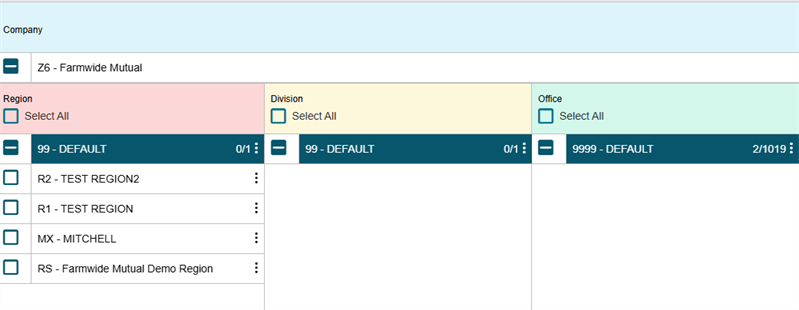
Select a Region name to filter for only users in that region.
-
Select a Division name to filter for only users in that division.
-
Select an Office to filter for only users in that office.
-
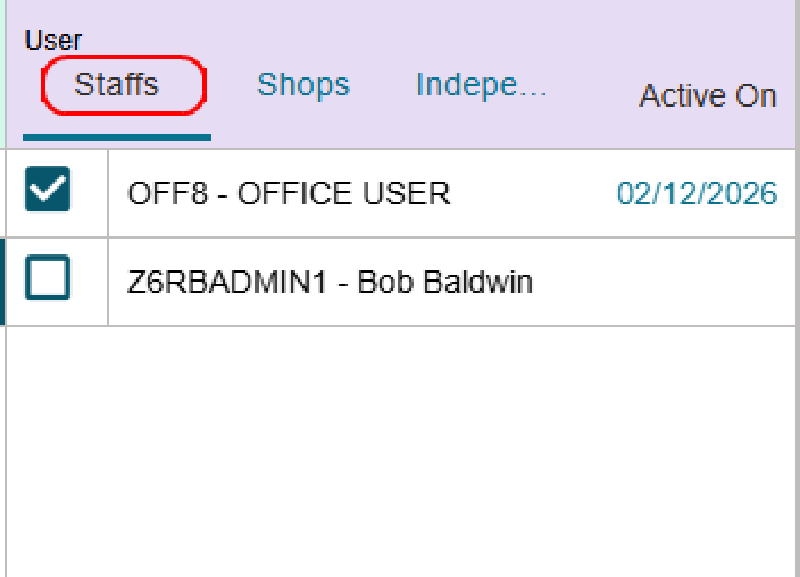
In the users column, select the appropriate tab (Staffs, Shops, or Independent Appraisers) for the user type you want to view.
-
Select the check box next to the desired user(s).
-
Select Save to complete your profile and user selections.
Select All Users
You can select all users in a specific location to add them all to the profile.
-
Select the Assign User tab to view the users you can assign to the profile.
-
Do one of the following:
-
To select all users in a given category (e.g. all users in all regions), select the Select All check box below the column name.
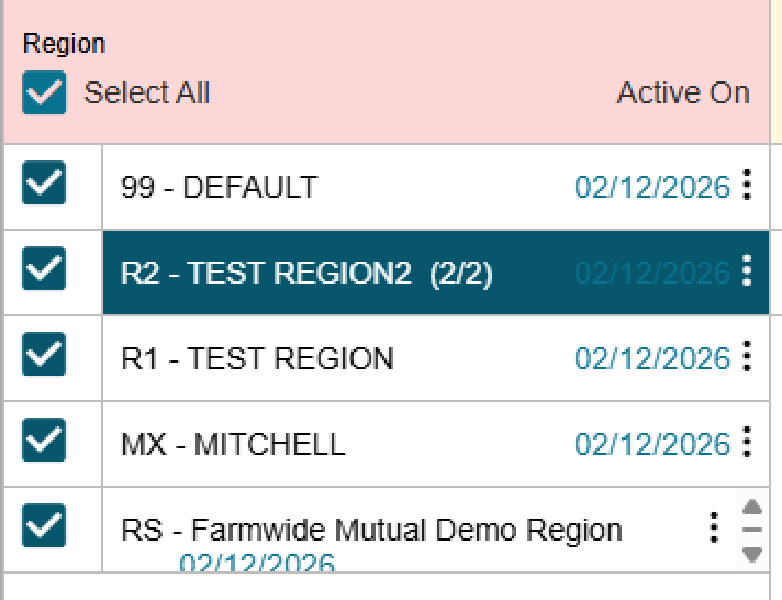
-
To select all users in a specific location (e.g. all users in a given region), select the check box next to the location name.
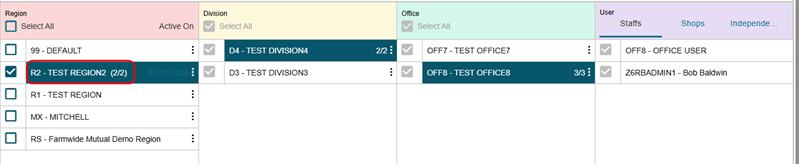
-
Select Save to complete your profile and user selections.
Search for Profiles
You can search across all profile types (Compliance, Parts, Estimate, etc.). To search for a specific profile type, choose a Profile Type before searching.
-
On the Search menu in the navigation bar, select Profiles.
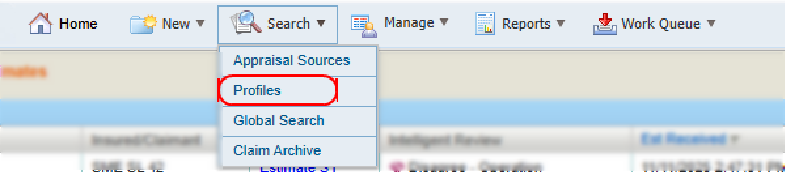
-
Enter the desired search criteria.
Note: To return all records, leave all criteria blank.
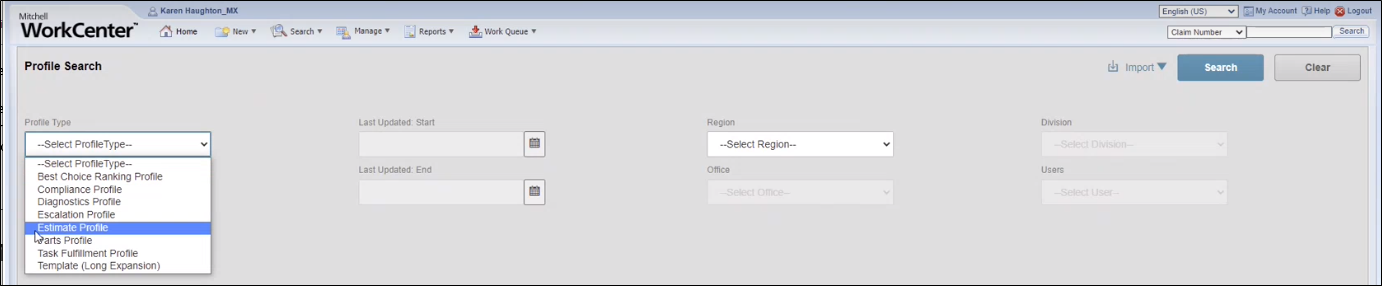
-
Select Search to view the Search Results list.
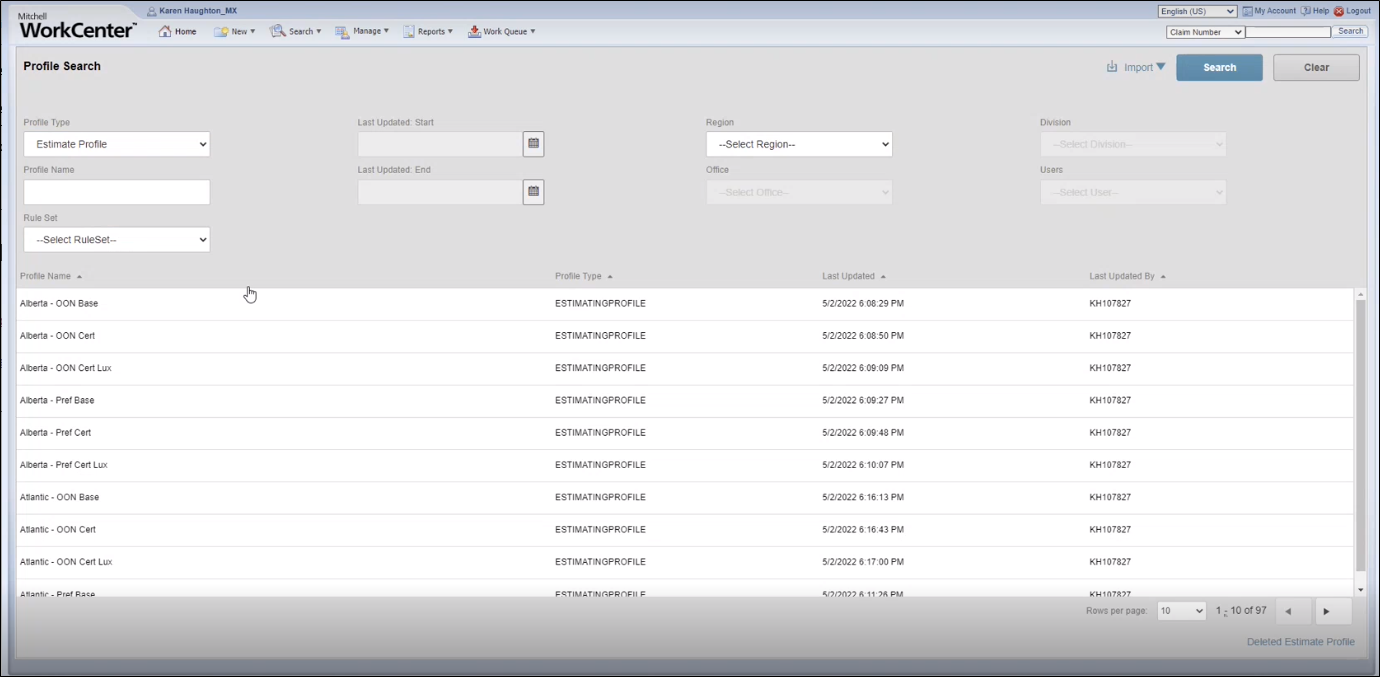
-
Select the desired profile from the Search Results list to open it.
Reference
Rule Components
| Name | Description |
|---|---|
| Rule Category |
The rule's category. |
| Rule Name |
The name of the conditional rule. |
| Threshold Value | Enter a threshold value for the conditional rule. |
| Lookup Table | Select  to choose a Lookup Table to apply to the profile. to choose a Lookup Table to apply to the profile. |
| Result Type |
Select the Result Type for when an estimate fails the compliance rule:
|
| Comment for Warning? | If applicable, you can require a comment for warnings as well as failures. |
| Reviewer Option | Select the Hide from Appraiser or Escalated to Review check box(es) as desired. |
| Additional Setting | Any additional settings that apply to the rule. |
| Estimate Version(s) | Select which estimate versions (original, supplement, etc.) to which the rule applies. |
Related topics
