Time View Tab
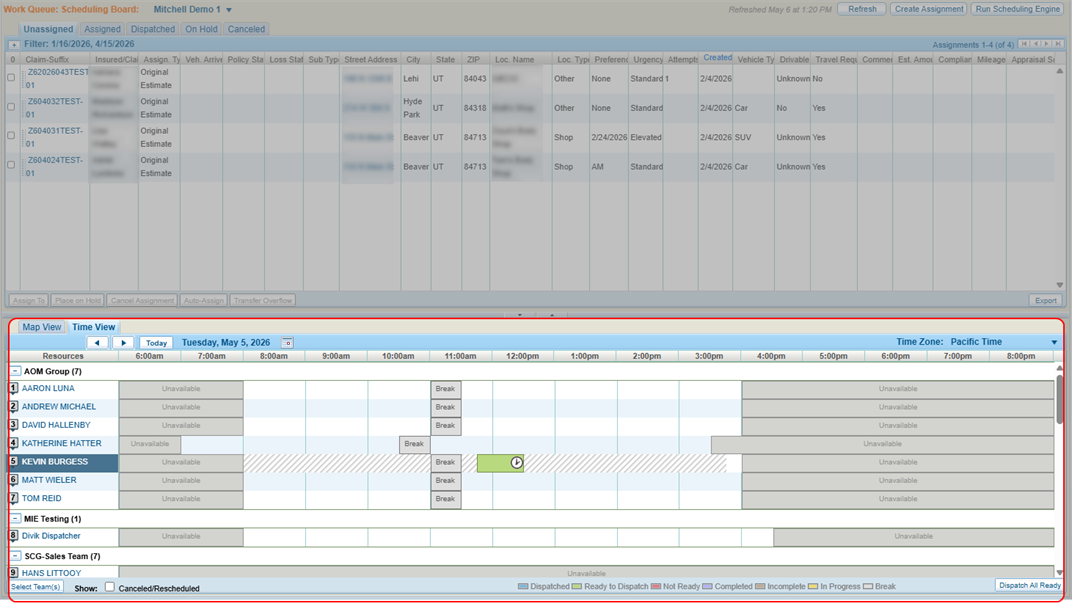
The Time View tab of the Scheduling Board shows assignment and resource schedules in a calendar format. Use the Time View tab to view and manage appraisal assignments.
How to
 View the Time View Tab
-
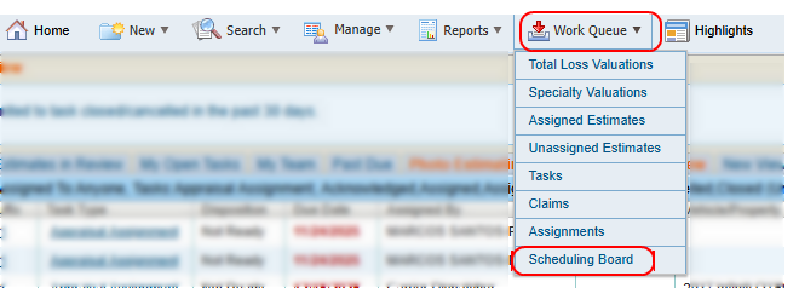
On the Work Queue menu in the navigation bar, select Scheduling Board.
-
Select the Time View tab.
-
Select
 to choose a date, or use the navigation arrows to move through and choose a date.
-
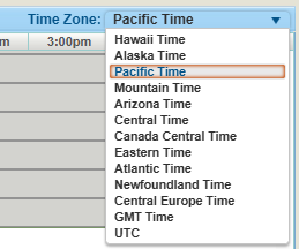
Select a Time Zone from the list. The default time zone is Pacific Time.
-
View the Time View calendar. Each row in the Time View calendar displays a resource's schedule of assignments for that day.
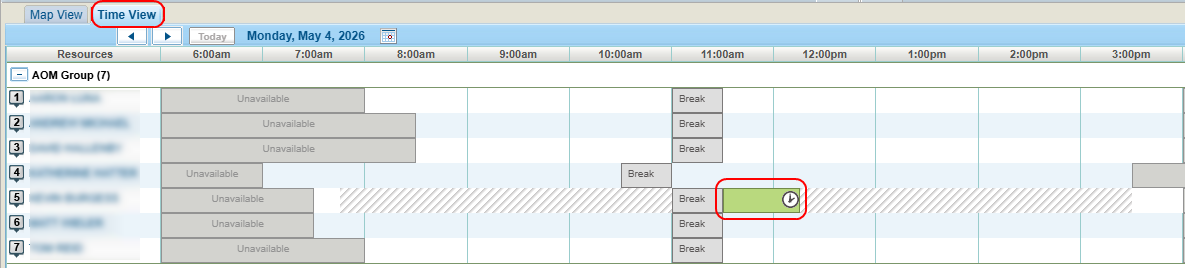
Note: The assignment is color-coded based on its status. Gray hash lines on the schedule next to the assignment represent travel time.
-
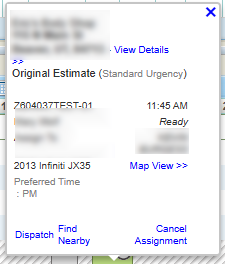
Select the assignment to view its information.
Select the Resources That Display on the Time View Tab
Each row in the Time View calendar displays a resource's schedule of assignments for that day. You can modify which resources display on the calendar.
-
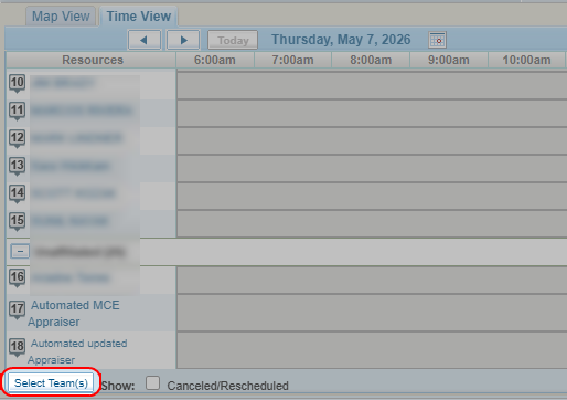
Select Select Team(s) to choose which groups to show on the Time View tab. See Manage Groups for more information on groups.
-
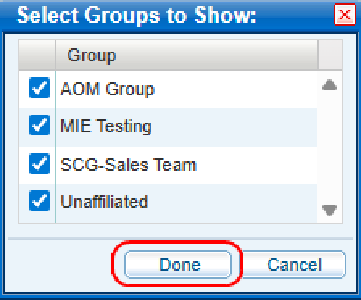
Select the checkbox(es) next to the desired group(s).
-
Select Done.
-
Select
 and
and  on the Time View calendar to hide or show the member resources of each team you have selected.
Use Drag and Drop to Assign Assignments
Use drag-and-drop scheduling to manually assign work to a specific appraiser at a specific time.
Note: The assignment is scheduled exactly where it is placed on the Time View tab, regardless of any overlap or scheduling conflicts.
-
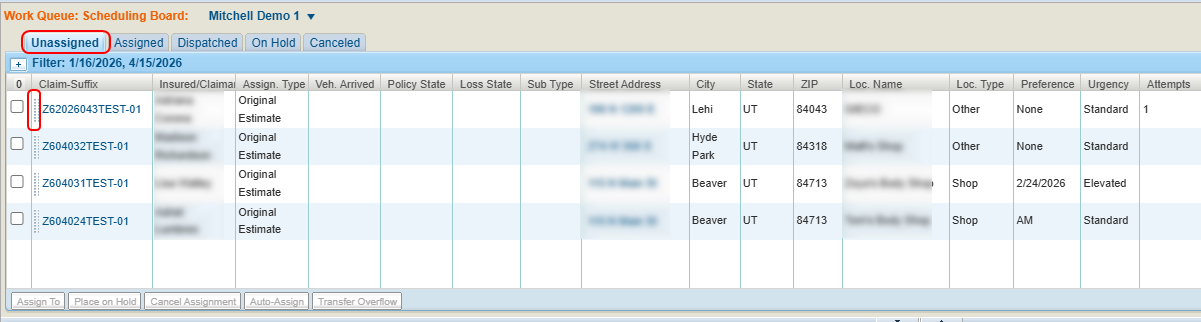
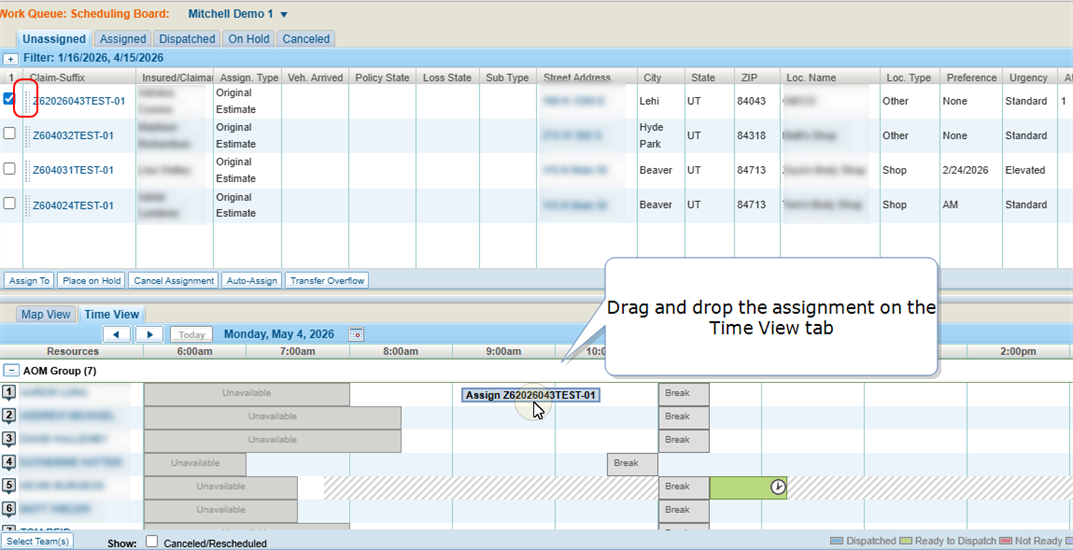
On the Scheduling Board, select the Unassigned tab.
-
Select the lines next to the Claim Suffix number of the desired assignment.
-
Drag the assignment to the desired location on the Time View tab.
Use Drag and Drop to Unassign Assignments
-
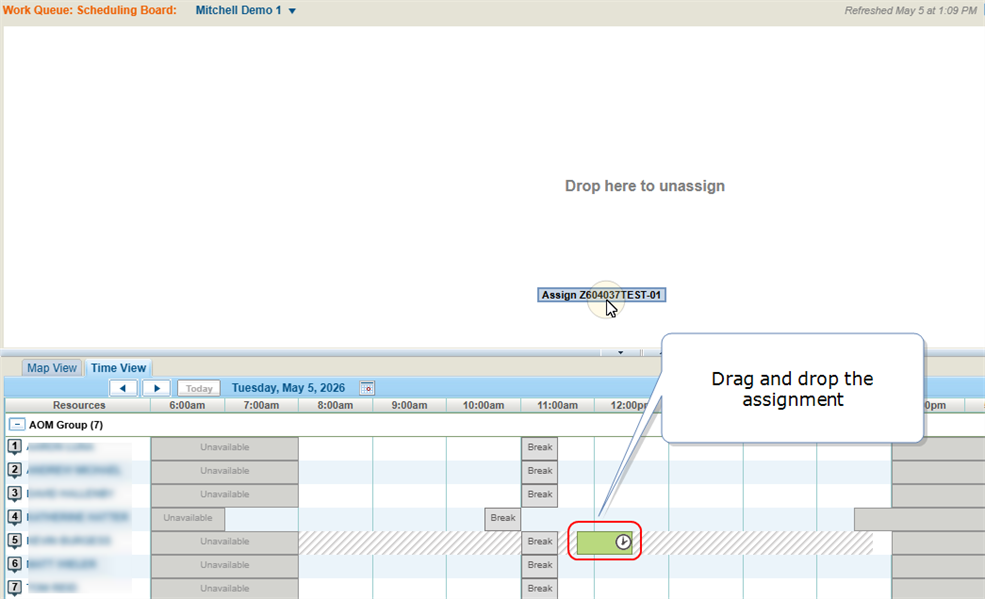
On the Scheduling Board, select the Time View tab.
-
Navigate to the desired assignment on the tab.
-
Select the assignment on the Time View tab and drag it to the Drop here to unassign area.
Cancel an Assignment from the Time View Tab
-
On the Scheduling Board, select the Time View tab.
-
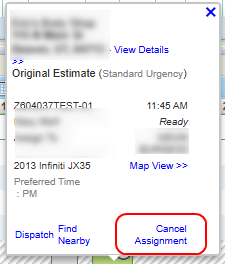
Select the desired assignment.
-
Select Cancel Assignment.
-
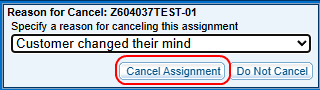
In the window, select a Reason for Cancellation from the list.
-
Select Cancel Assignment.
Reference
Time View Tab Components
| Name | Description |
|---|---|
| Resources | Select the resource name to view the resource's details. |
| Break |
The resource's scheduled break time. |
| Unavailable | The time when the resource is unavailable for assignments. |
|
Show Canceled /Rescheduled |
Select the check box to show canceled/rescheduled assignments on the Time View calendar. |
| Dispatch All Ready | Select to dispatch all scheduled assignments with a Ready status. |
Time View Tab Color Codes
The assignment is color-coded based on its status.

| Name | Description |
|---|---|
| Blue | The assignment has been dispatched. |
| Green |
The assignment is ready to dispatch. |
| Red | The assignment is missing information and is not ready to dispatch. |
|
Purple |
The assignment has been completed. |
| Dark Gray | The assignment is incomplete. |
| Yellow | The assignment is in progress. |
| Light Gray | The resource's scheduled break time. |
Related topics
