Map View Tab
The Map View tab uses Google® Maps to show where assignments and resources are located, as well as the routes between them. Use the Map View tab to view and manage appraisal assignments.
How to
 View the Map View Tab
-
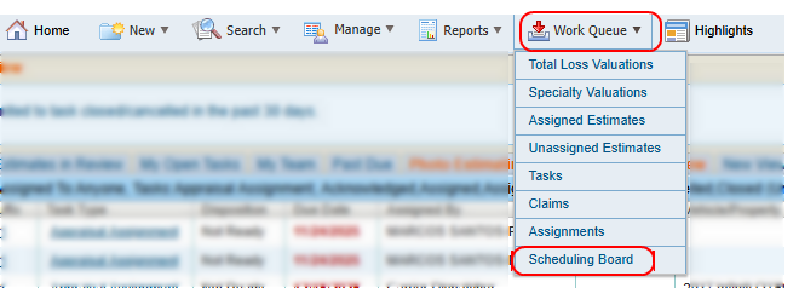
On the Work Queue menu in the navigation bar, select Scheduling Board.
-
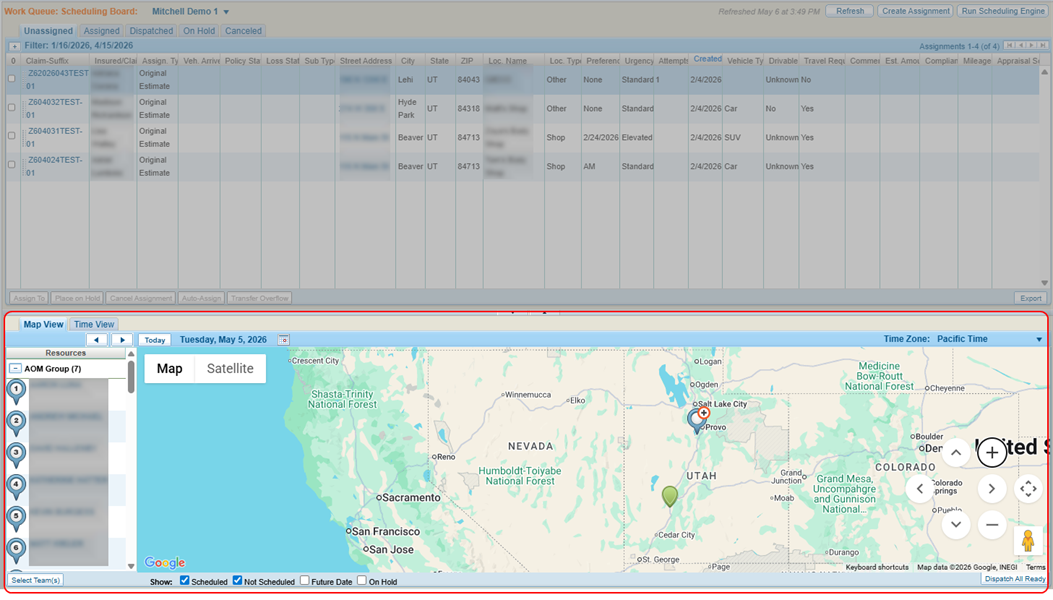
Select the Map View tab.
-
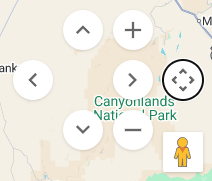
Use the map controls to navigate the map as needed.
-
Select
 to view the resource(s) at that map location.
 -
Select
 to view information about the assignment at that map location. The map also shows the route from the resource's location to the assignment location.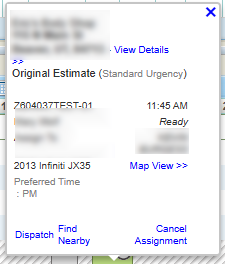
View an Individual Resource's Assignment on the Map View Tab
To view the assignments for a specific resource on the map:
-
On the Map View tab, select the number
 next to the resource's name on the list.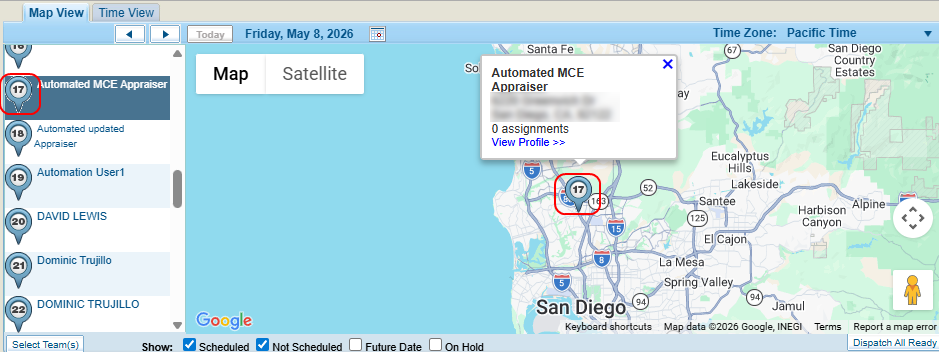
Select the Resources That Display on the Map View Tab
The Map View tab shows where assignments and resources are located, as well as the routes between them. You can modify which resources display on the map.
-
Select Select Team(s) to choose which groups to show on the Map View tab. See Manage Groups for more information on groups.
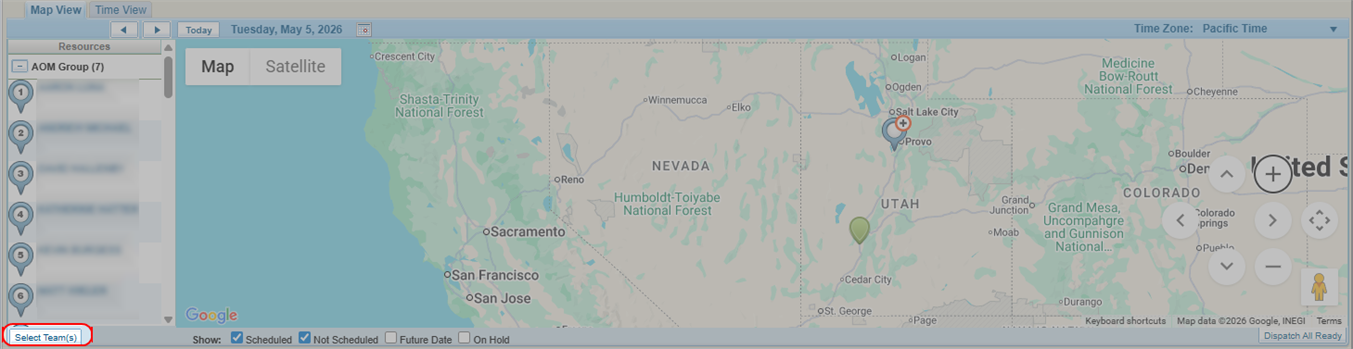
-
Select the checkbox(es) next to the desired group(s).
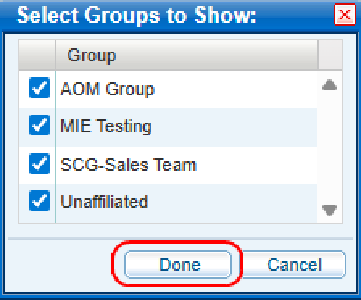
-
Select Done.
-
Select
 and
and  on the Map View to hide or show the member resources of each team you have selected.
Cancel an Assignment from the Map View Tab
-
On the Scheduling Board, select the Map View tab.
-
Select the desired assignment.
Note: You may have to zoom in/out or select the appropriate resource from the list on the left side of the map to find the assignment.
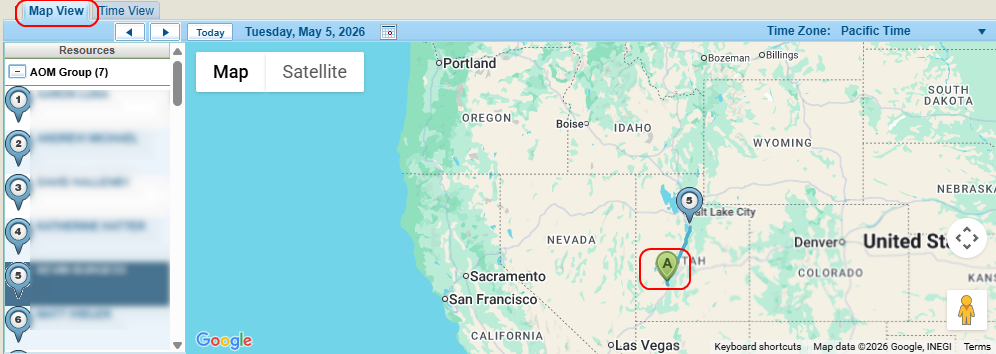
-
Select Cancel Assignment.
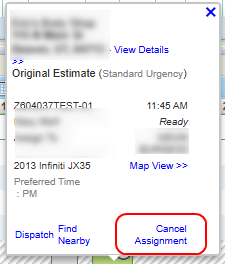
-
In the window, select a Reason for Cancellation from the list.
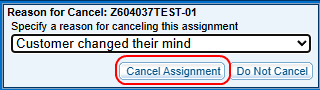
-
Select Cancel Assignment.
Reference
Map View Tab Components
| Name | Description |
|---|---|
| Resources | Select the resource name to view the resource's details. |
| Dispatch All Ready | Select to dispatch all scheduled assignments with a Ready status. |
| Show Scheduled/Not Scheduled/Future Date/On Hold | Select the appropriate check box(es) to show the desired assignments. |
Related topics
