Use Photo Based Estimating
Photo Based Estimating allows vehicle owners to document minor damage using a smart phone app that sends images directly to the insurance company. The insurance company then uses the images to assess the damage and write the estimate.
Select Photo Based Estimating as the Inspection Method when creating an assignment to create a Consumer Photo Capture task for the vehicle owner.
Note: When photos are uploaded from the Photo Capture task, any file tags and descriptions from the user are displayed in the All Items and Manage Attachments sections of the claim navigation pane.
How to
 Create a Photo Based Estimate
-
Follow the steps to Create A New Assignment.
-
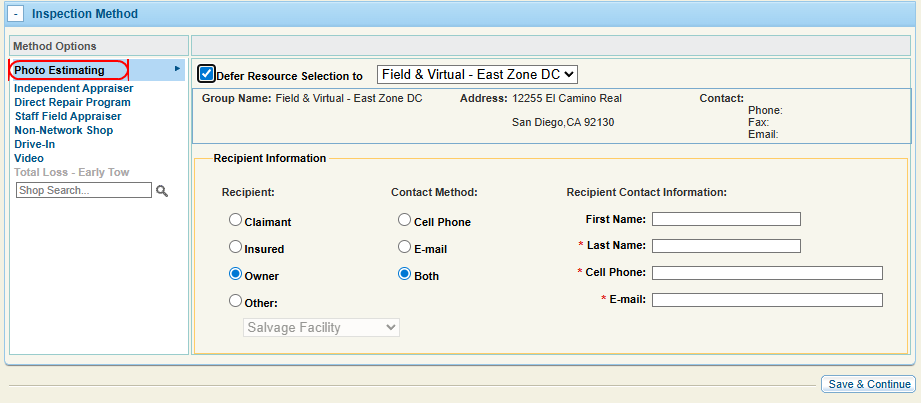
On the Inspection Method step, select Photo Estimating.
-
Complete the Recipient Information section. The recipient is the person who will receive the Consumer Photo Task with instructions for taking photos.
-
Do one of the following to select an appraisal resource:
-
Select the check box next to Defer Resource Selection to and select a Dispatch Center from the list.
-
Use Resource Lookup to find and select a resource.
-
-
Select Save & Continue to continue with the assignment.
Note: When Photo Estimating is selected as the Inspection Method, you do not need to enter and validate an address in the Assignment Details section. However, you may still need to add notes to the assignment details.
-
Once finished, select Save & Send to send the Photo Based Estimate to the recipient.
View Photo Based Estimate Images
Once the vehicle owner has sent the images, there are two ways to view the Photo Based Estimating images for a claim/assignment:
-
Select All Items in the claim navigation pane.
-
Select Manage Attachments in the claim navigation pane.
Request Additional Photos from the Assignment Details Page
There are two ways to request additional photos for a Photo Based Estimating assignment. One method is using the Assignment Details page.
-
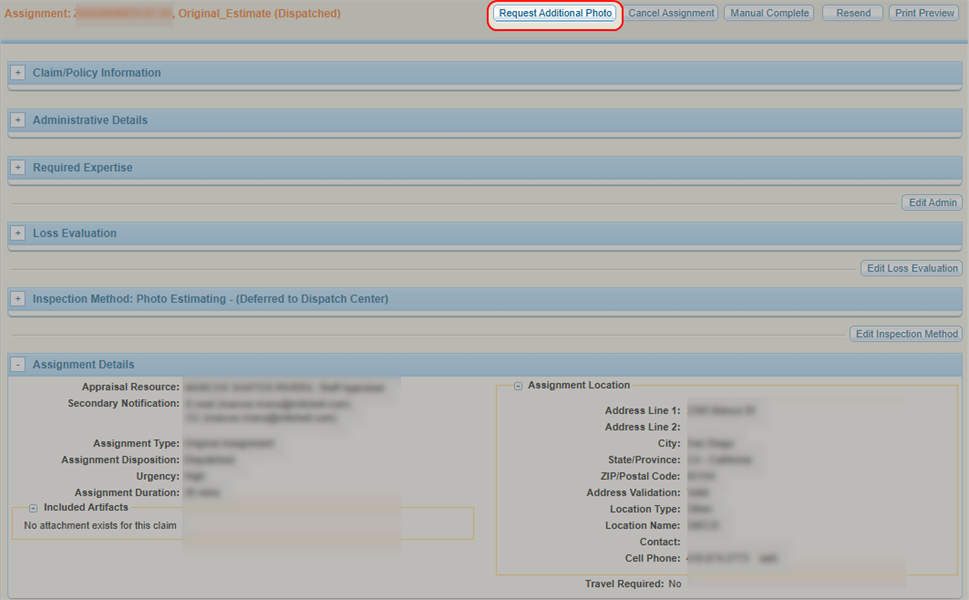
Navigate to the details page of the desired assignment. See View Assignment Details for more information.
-
Select Request Additional Photos.
-
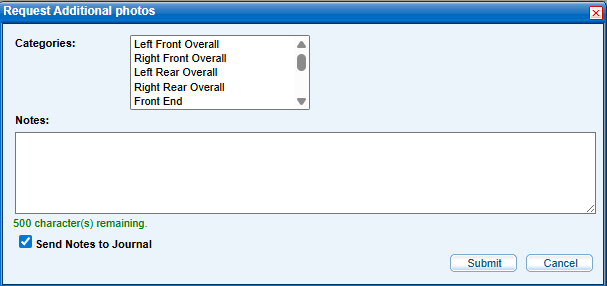
In the Request Additional photos window, select one or multiple photo categories from the Categories list.
-
Optionally, enter any additional information in the Notes section, and select the Send Notes to Journal check box to include the notes in the claim journal.
-
Select Submit.
Request Additional Photos from the Suffix Details Page
There are two ways to request additional photos for a Photo Based Estimating assignment. One method is using the Suffix Details page.
-
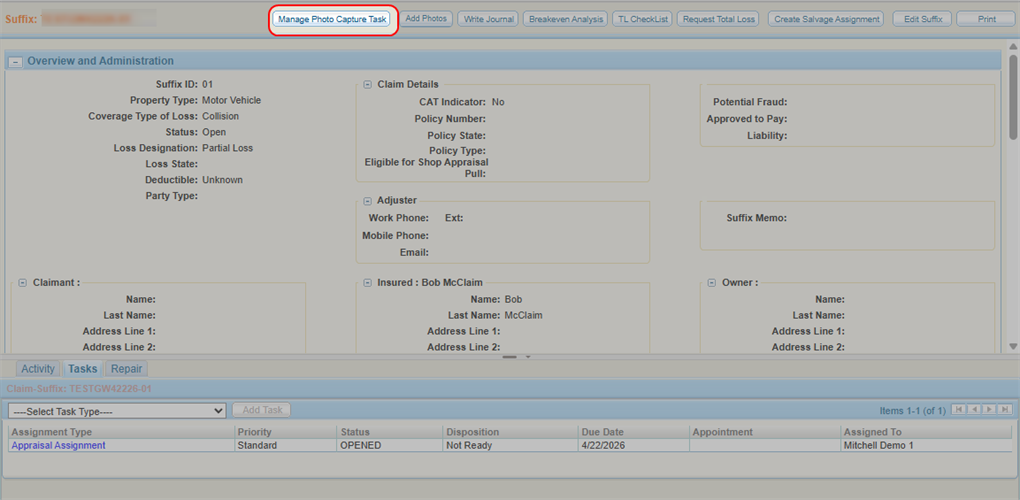
Navigate to the details page of the suffix that contains the Photo Based Estimating assignment. See View a Suffix for more information.
-
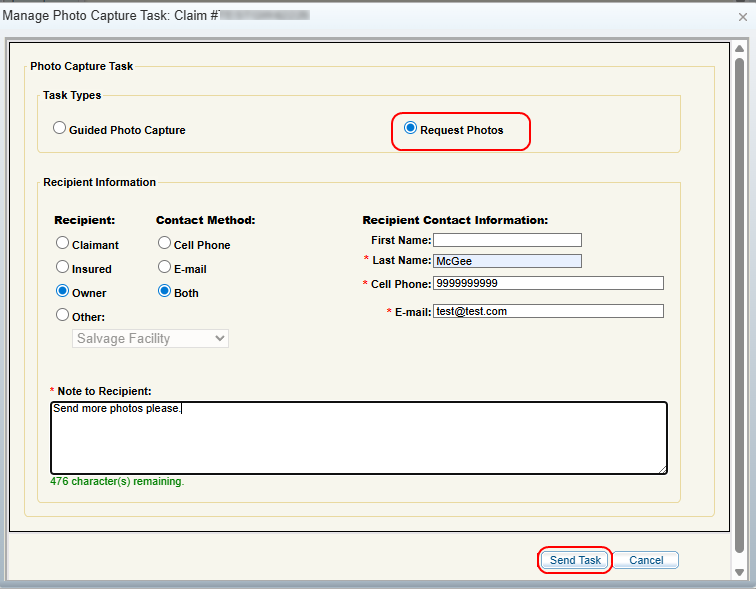
Select Manage Photo Capture Task.
-
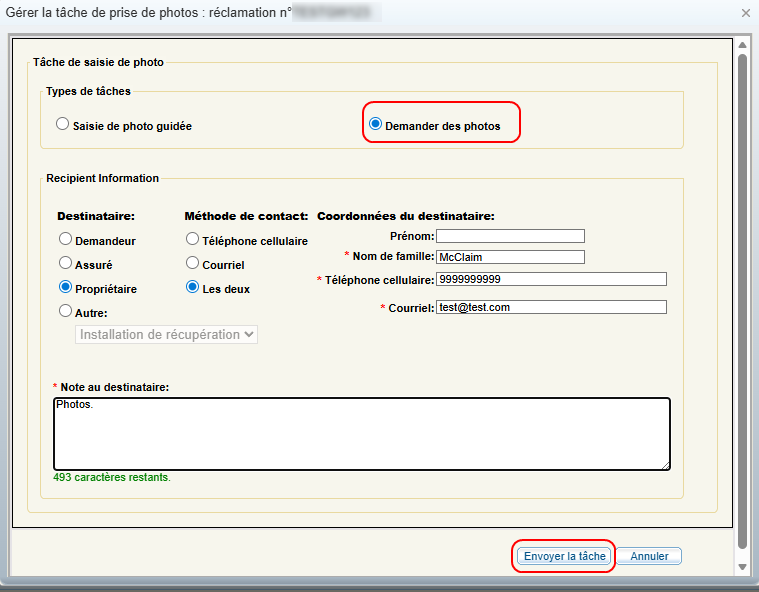
In the Manage Photo Capture Task window, select Request Photos.
-
Complete the Recipient Information section.
-
Enter a note explaining the request to the recipient.
-
Select Send Task.
Related topics
